How to download from Modrinth?

Downloading mods and plugins from Modrinth is one of the easiest ways to enhance your experience in Minecraft. Whether you're looking to add new features, improve performance, or customize gameplay, Modrinth offers a fast and user-friendly way to find and install content. In this guide, you’ll learn exactly how to download mods and plugins step by step using both the website and launcher.

Downloading using the website

The section goes thorough on how to download using the website. To see how to download using the App check the section below!

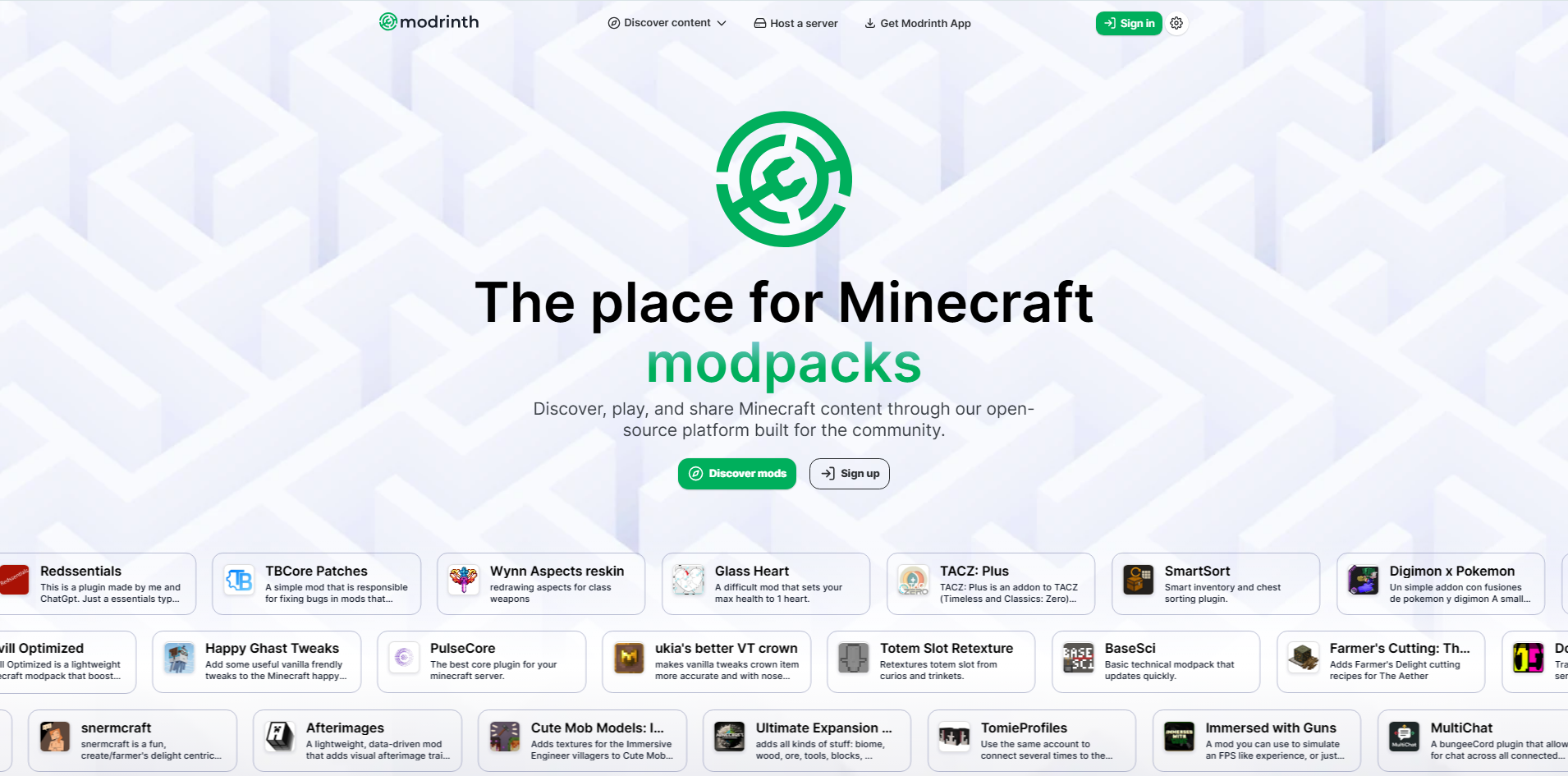
Head to the Modrinth website

Step 1: Head to the Modrinth website

First, you'll want to head to the modrinth website here
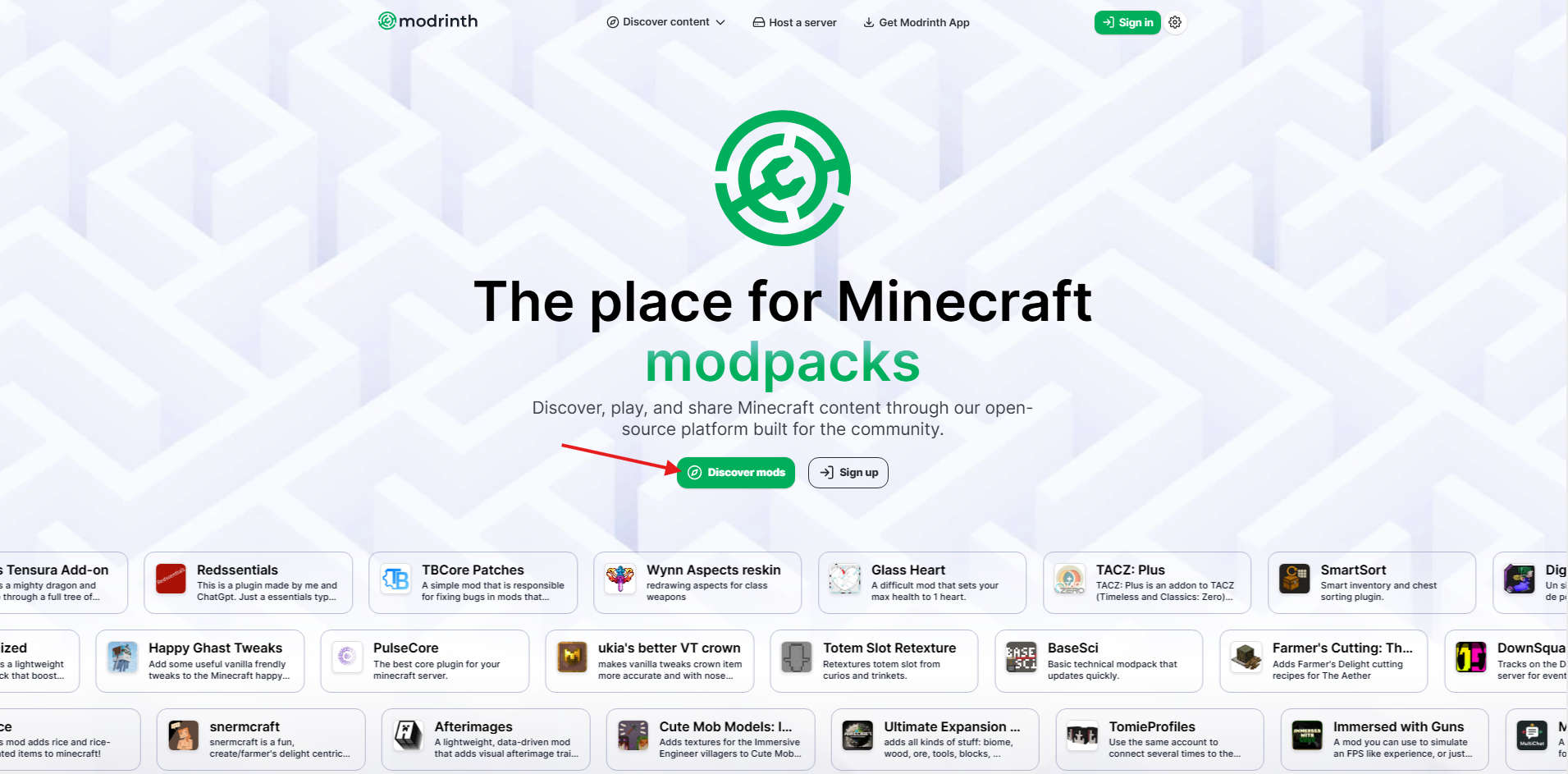
Go to the discover page

Step 2: Go to the discover page

Now that you're on the site, you'll want to head to the discover page where you discover new mods, plugins, shaders and more!
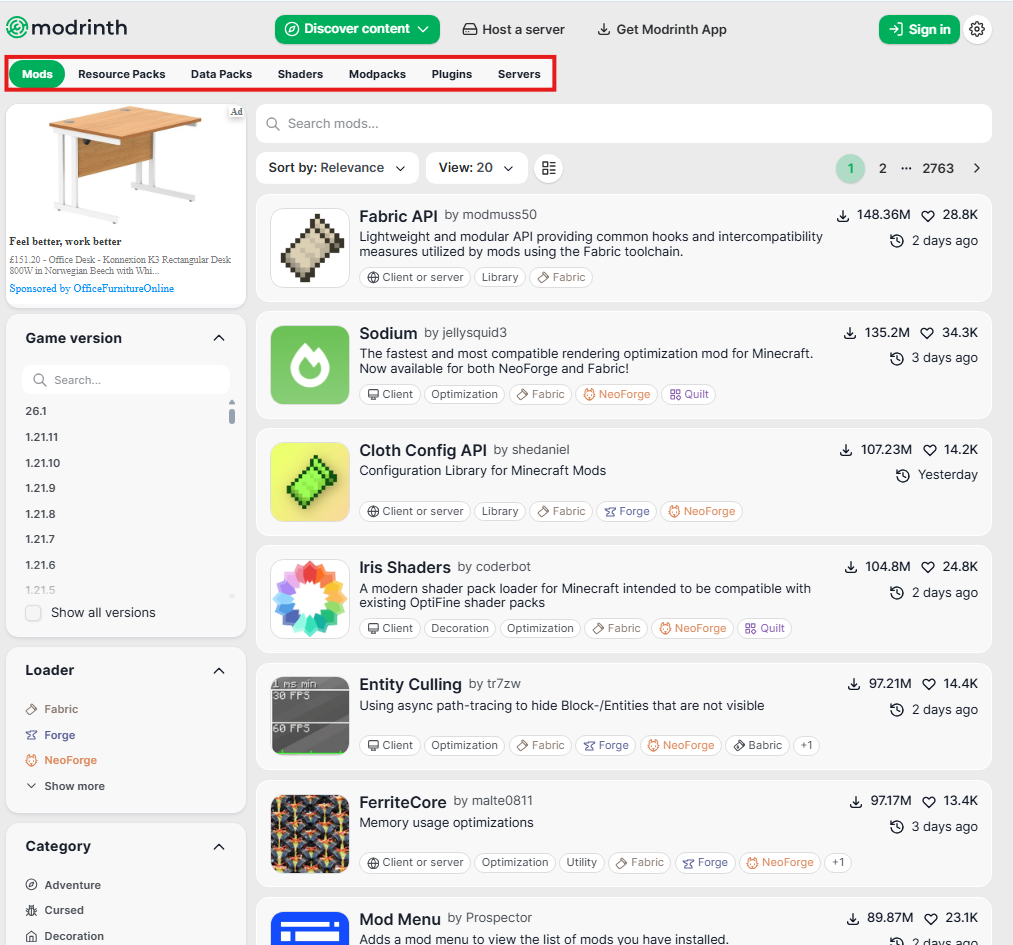
Select the type of resource you want to download

Step 3: Select the type of resource you want to download

Modrinth offers any different types of resources that can be downloaded including resource packs, plugins, mods and modpacks. You'll want to select which of these you want to download on the navigation bar in the top left of the page.
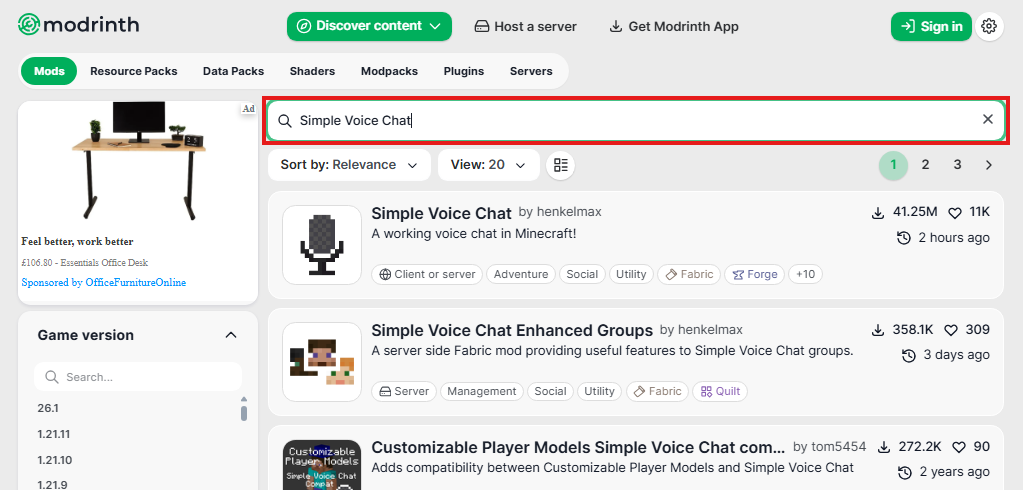
Search for the for the resource you want

Step 4: Search for the for the resource you want

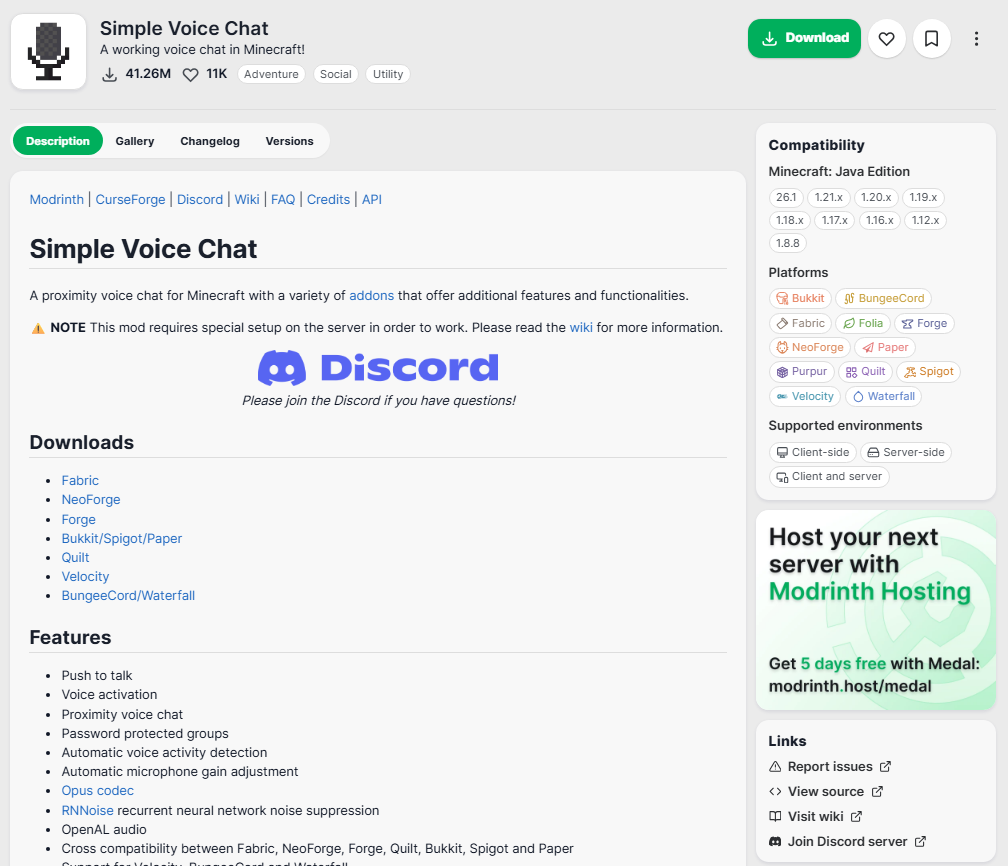
Use the search bar on the top of the discover page to find the resource you want to download. For this example, I've used the Simple Voice Chat mod, and by searching it in the box, it comes right to the top!
Select the resource you want

Step 5: Select the resource you want

For this step all you need to do is click on the resource you want to go to, and it will take you to it's page!
Press the download button

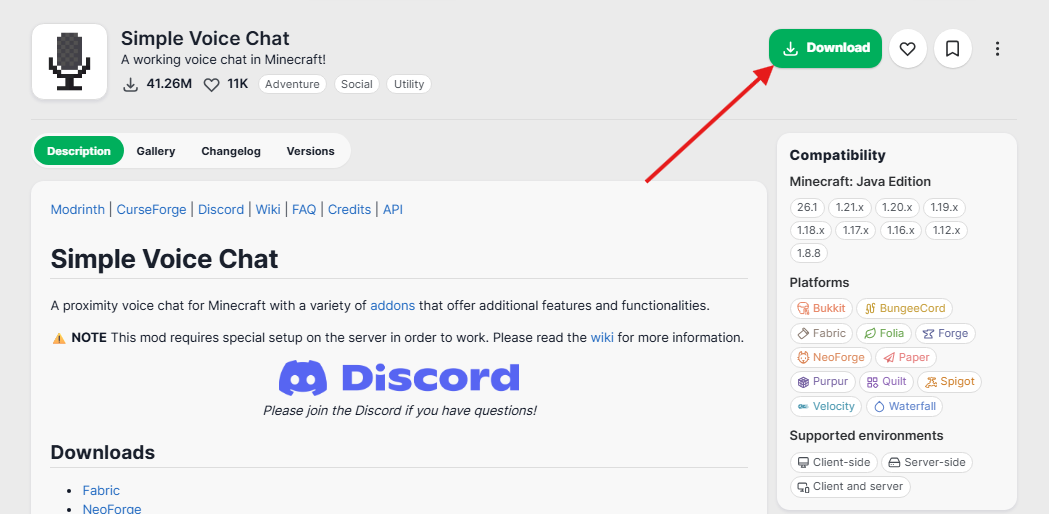
Step 6: Press the download button

It's as simple as it sounds! All you need to do here is press the download button, and i'll bring up a pop up in the centre of your screen.
Select the Game Version

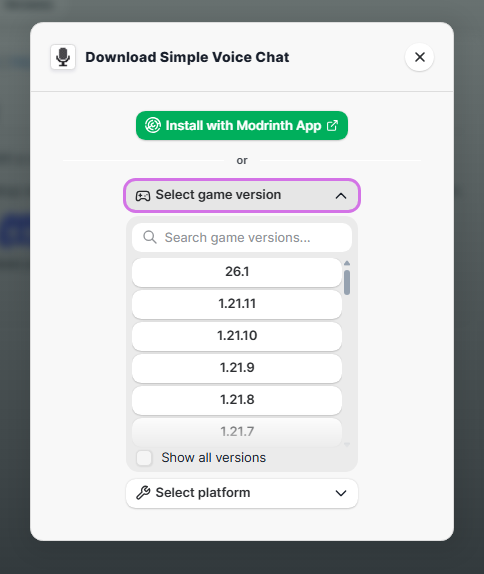
Step 7: Select the Game Version

This step is very important, as some mods/plugins will only work for specific versions of Minecraft, so it's important to select the mod for the version of Minecraft you're playing with
Select the Platform

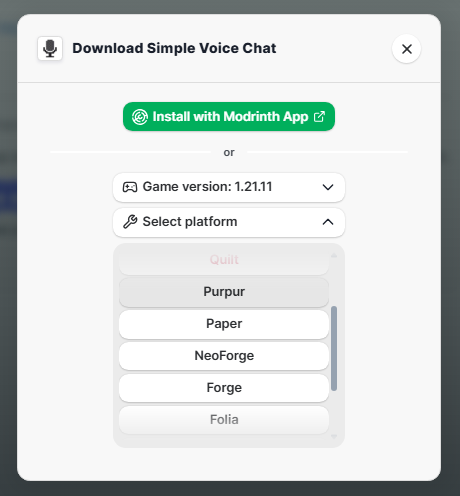
Step 8: Select the Platform

Even more so that the last step, it's important you select the correct platform for the mod/plugin that you're using! If you're using Forge for example, it's vital you select the Forge platform options as only Forge mods work with Forge
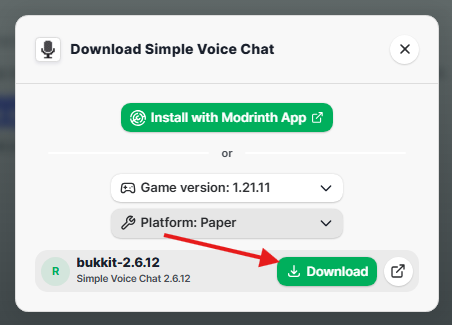
Press Download

Step 9: Press Download

Finally once you have the correct version and platform selected, you now just need to press download! This will download the resource to your computer so you can use it!

Downloading using the app

The section goes thorough on how to download using the app. To see how to download using the website check the section above!
Open up the Modrinth app

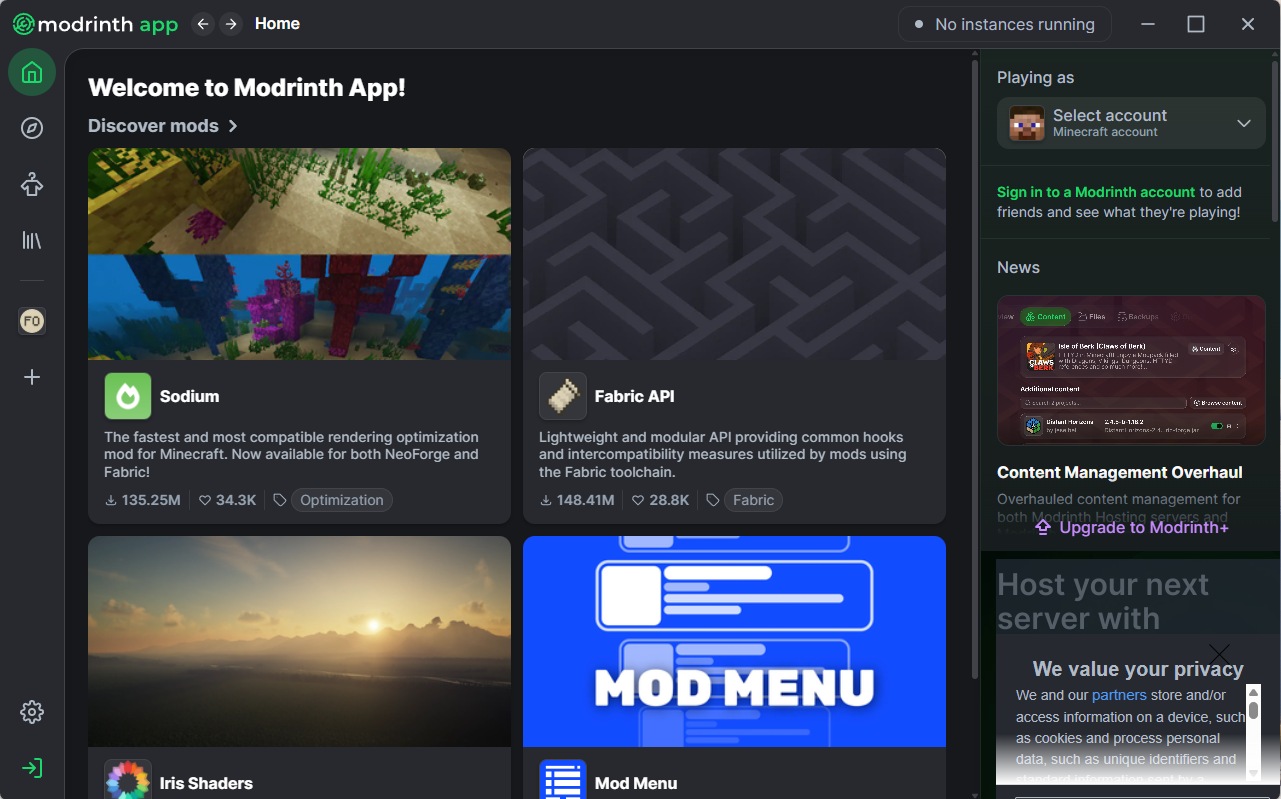
Step 1: Open up the Modrinth app

First, you'll want to open up the modrinth app. We have a guide on how to install it here
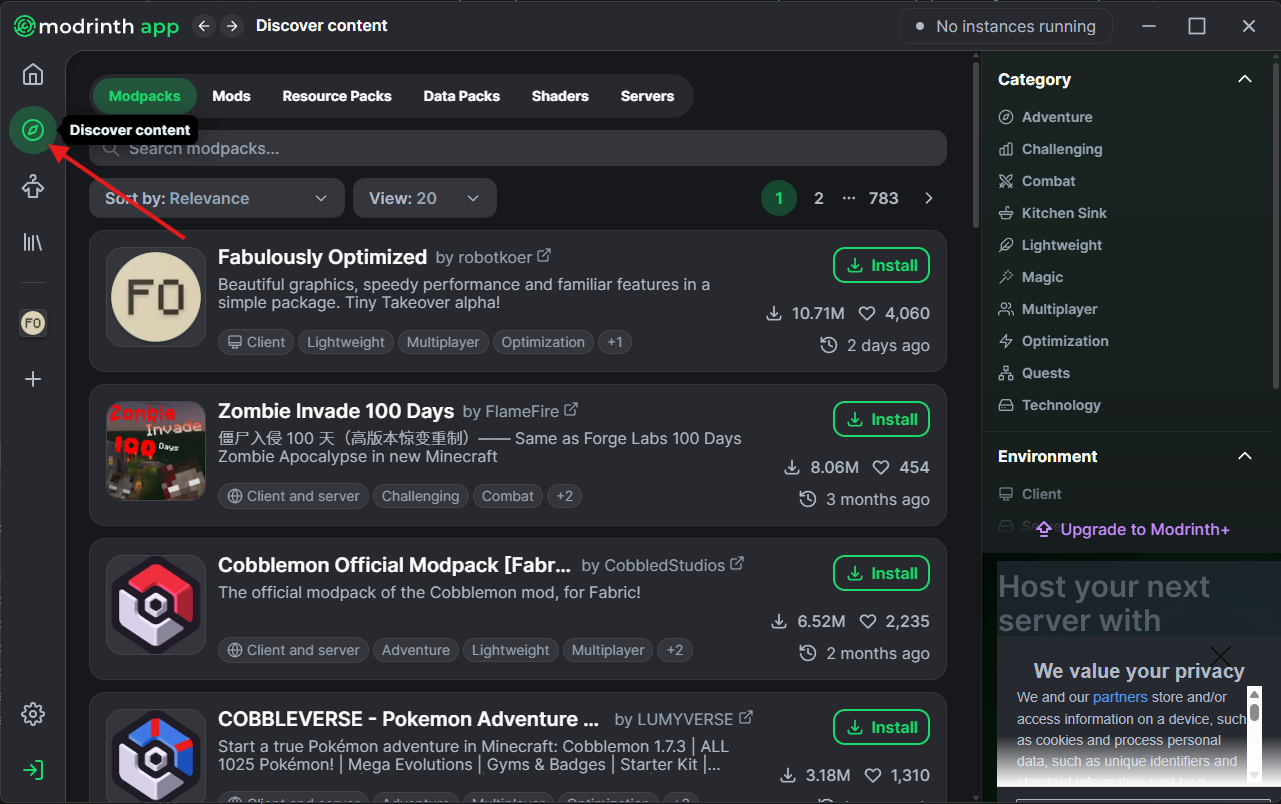
Go to the Discover content tab

Step 2: Go to the Discover content tab

Now that you're on the app, you'll want to head to the discover page where you discover new mods, plugins, shaders and more!
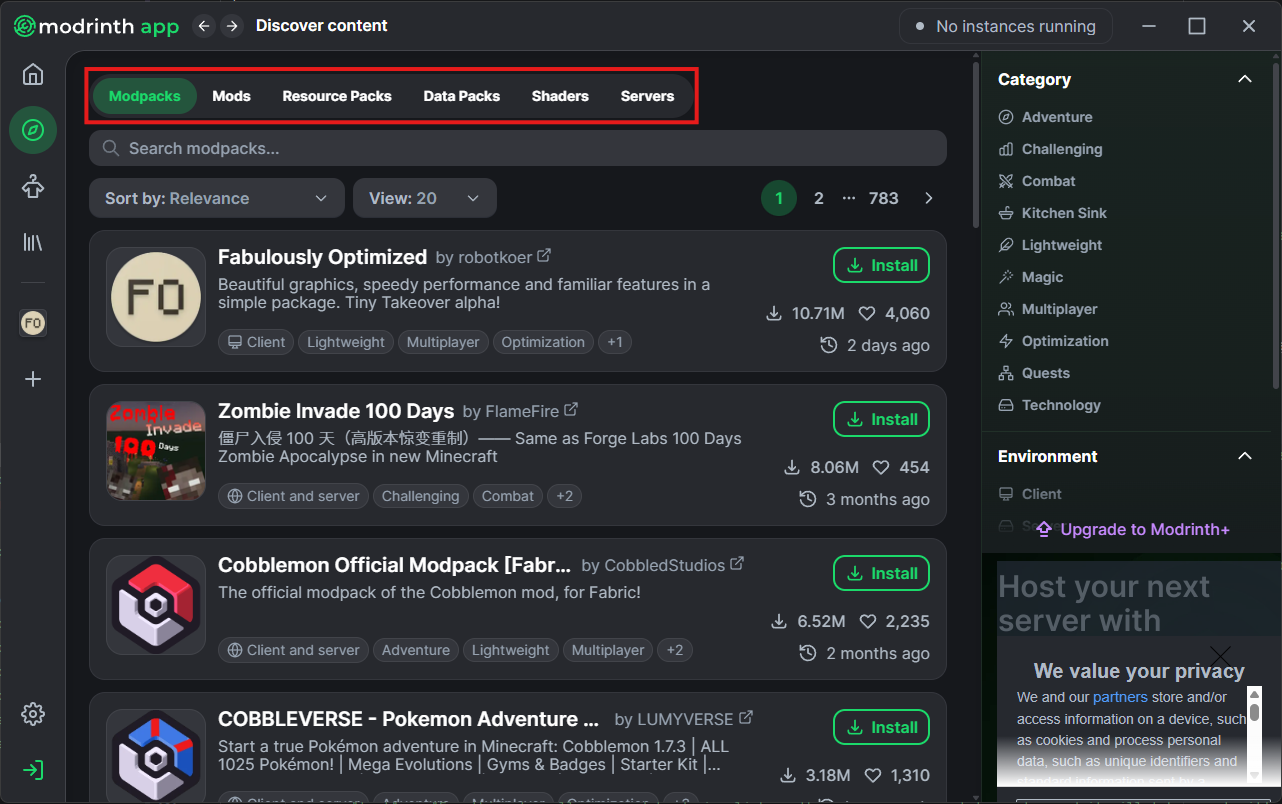
Select the type of resource you want to download

Step 3: Select the type of resource you want to download

Modrinth offers any different types of resource that can be downloaded including resource packs, plugins, mods and modpacks. You'll want to select which of these you want to download on the navigation bar at the top of the page.
Search for the for the resource you want

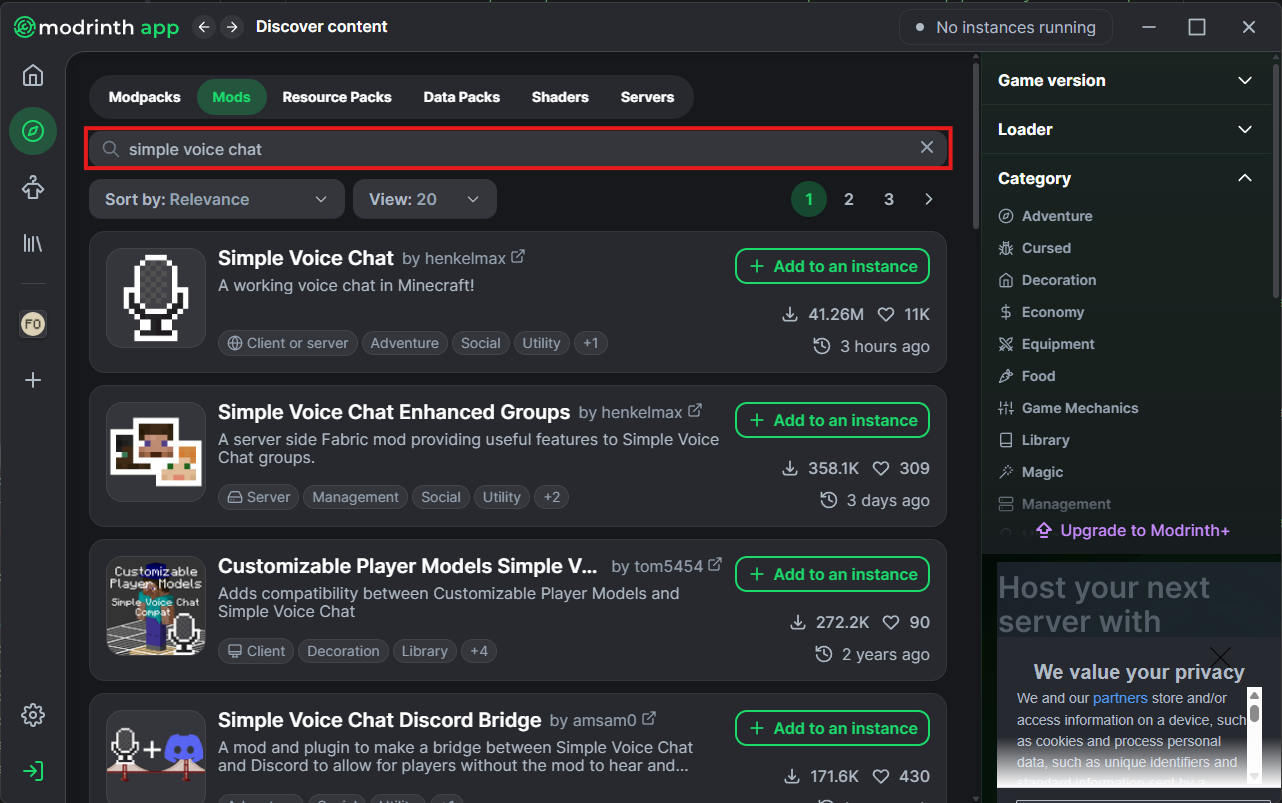
Step 4: Search for the for the resource you want

Use the search bar on the top of the discover page to find the resource you want to download. For this example, I've used the Simple Voice Chat mod, and by searching it in the box, it comes right to the top!
Select the resource you want

Step 5: Select the resource you want

For this step all you need to do is click on the resource you want to go to, and it will take you to it's page!
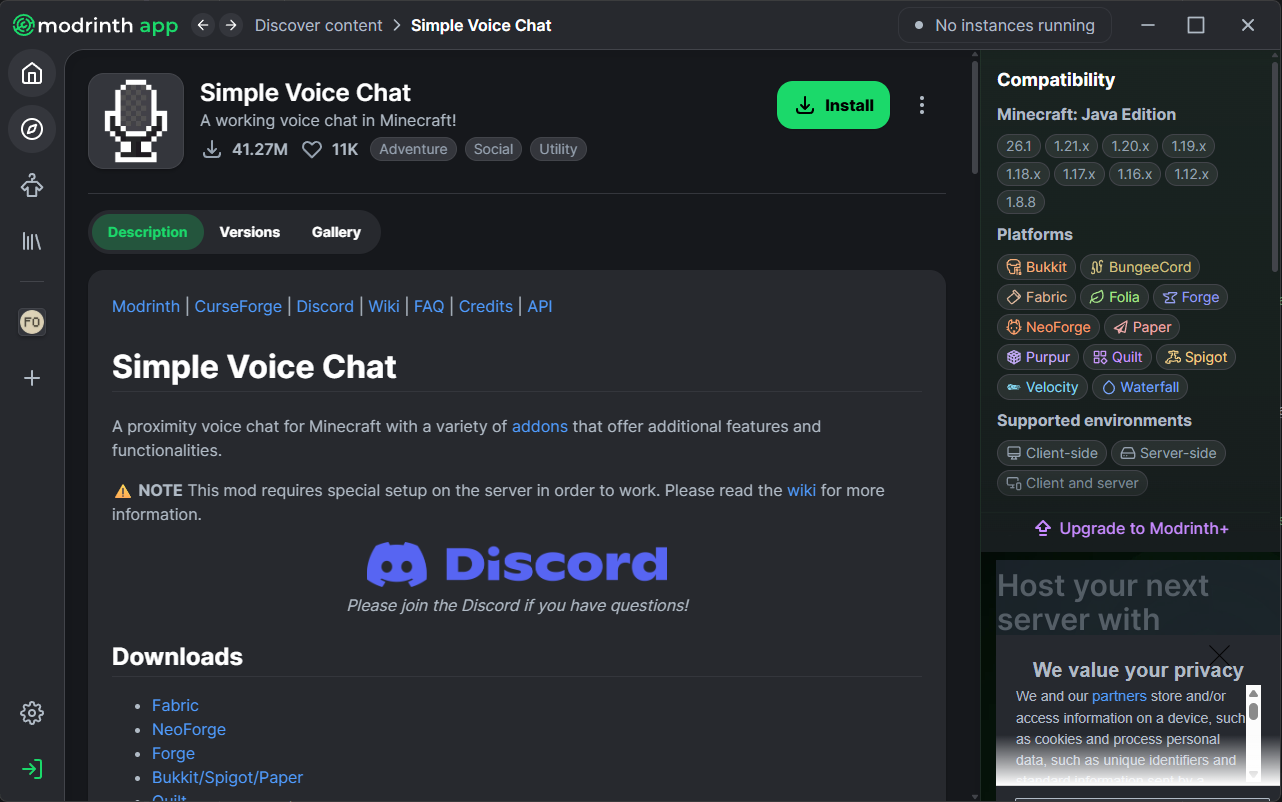
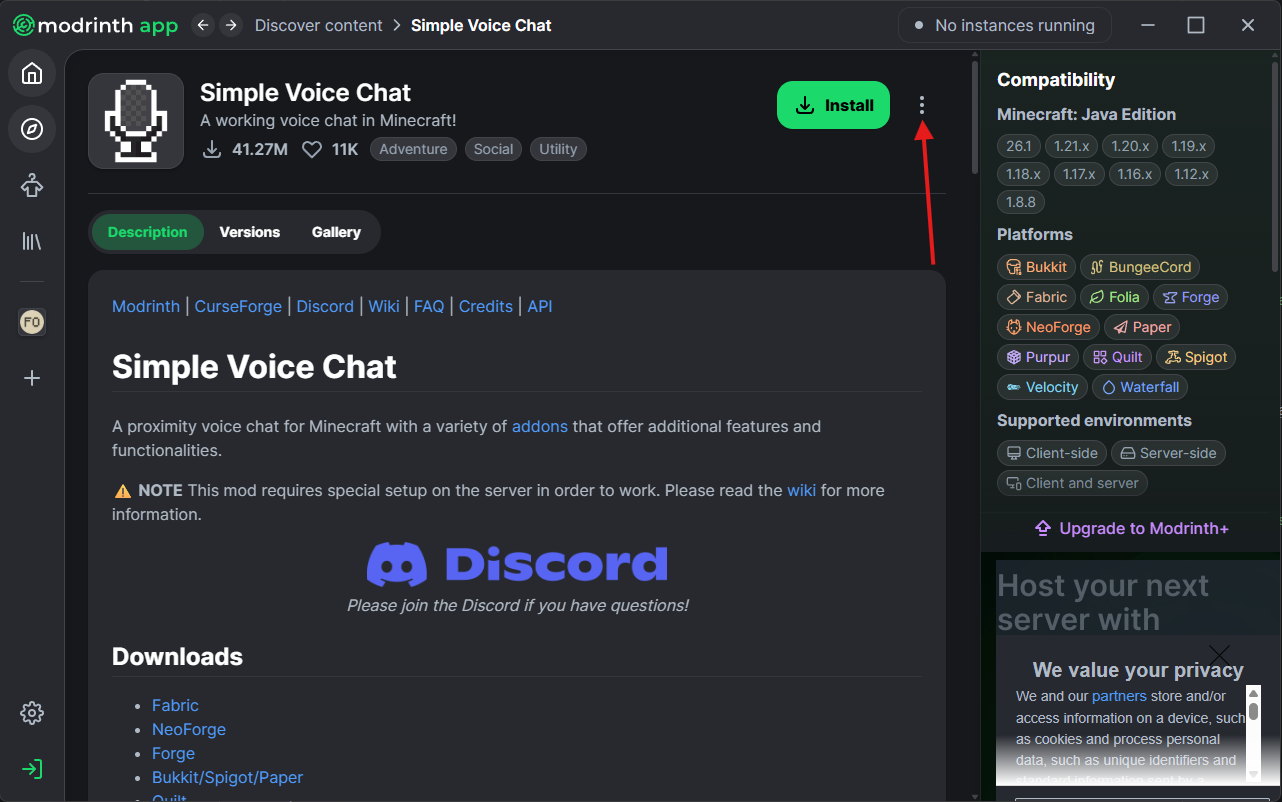
Press the three dots

Step 6: Press the three dots

It's as simple as it sounds! All you need to do here is press the three dots at the top right of the page, and it will open a dropdown menu.
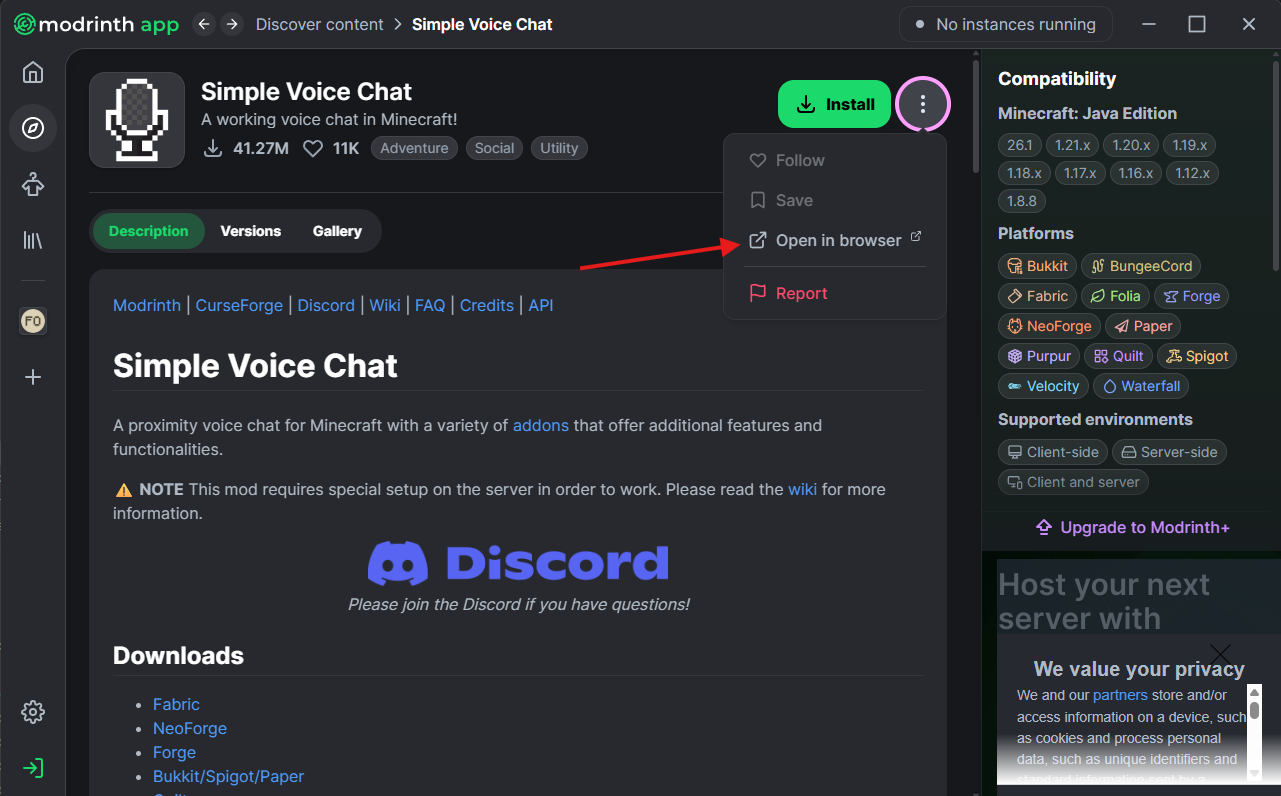
Open in Browser

Step 7: Open in Browser

Now you just need to press the Open in Browser button. It'll take you to the Modrinth website where you can download the mod from!
Press the download button

Step 8: Press the download button

It's as simple as it sounds! All you need to do here is press the download button, and i'll bring up a pop up in the centre of your screen.
Select the Game Version

Step 9: Select the Game Version

This step is very important, as some mods/plugins will only work for specific versions of Minecraft, so it's important to select the mod for the version of Minecraft you're playing with
Select the Platform

Step 10: Select the Platform

Even more so that the last step, it's important you select the correct platform for the mod/plugin that you're using! If you're using Forge for example, it's vital you select the Forge platform options as only Forge mods work with Forge
Press Download

Step 11: Press Download

Finally once you have the correct version and platform selected, you now just need to press download! This will download the resource to your computer so you can use it!
Index

All Your Modrinth Questions Answered

Each of these cards contains a link to a page that answers a commonly asked question about using Modrinth!

Ready to try your downloaded Modrinth resources?

PebbleHost offers premium game server hosting for every type of Modrinth resources including mods, plugins and datapacks! Enterprise hardware with AMD Ryzen™ 9 9900X CPUs, 99.99% uptime, and 72-Hour money-back guarantee.

View Minecraft Server Hosting