How to install a Modrinth Modpack?

Learn how to install a Modrinth modpack on both your client and server with this simple step-by-step guide. We’ll walk you through importing the modpack into your Modrinth app, setting it up for singleplayer or multiplayer, and correctly installing it on your server so everything runs smoothly. Whether you're playing solo or with friends, this guide ensures your modpack is configured properly and ready to go.

1. Installing onto a server
2. Installing onto your client
3. Installing using a .mrpack file

Server-Side

How to install a Modrinth Modpack on to the server?

Set up your Modrinth modpack on a server quickly and correctly with this step-by-step guide. We’ll show you how to install the modpack files, configure your server, and ensure everything runs smoothly so you can start playing with others without issues.

Open up the Modrinth app

Step 1: Open up the Modrinth app

First, you'll want to open up the modrinth app. We have a guide on how to install it here

If you already have a Modpack downloaded, or have made a custom one, just skip straight to step 5!
Go to the Discover content tab

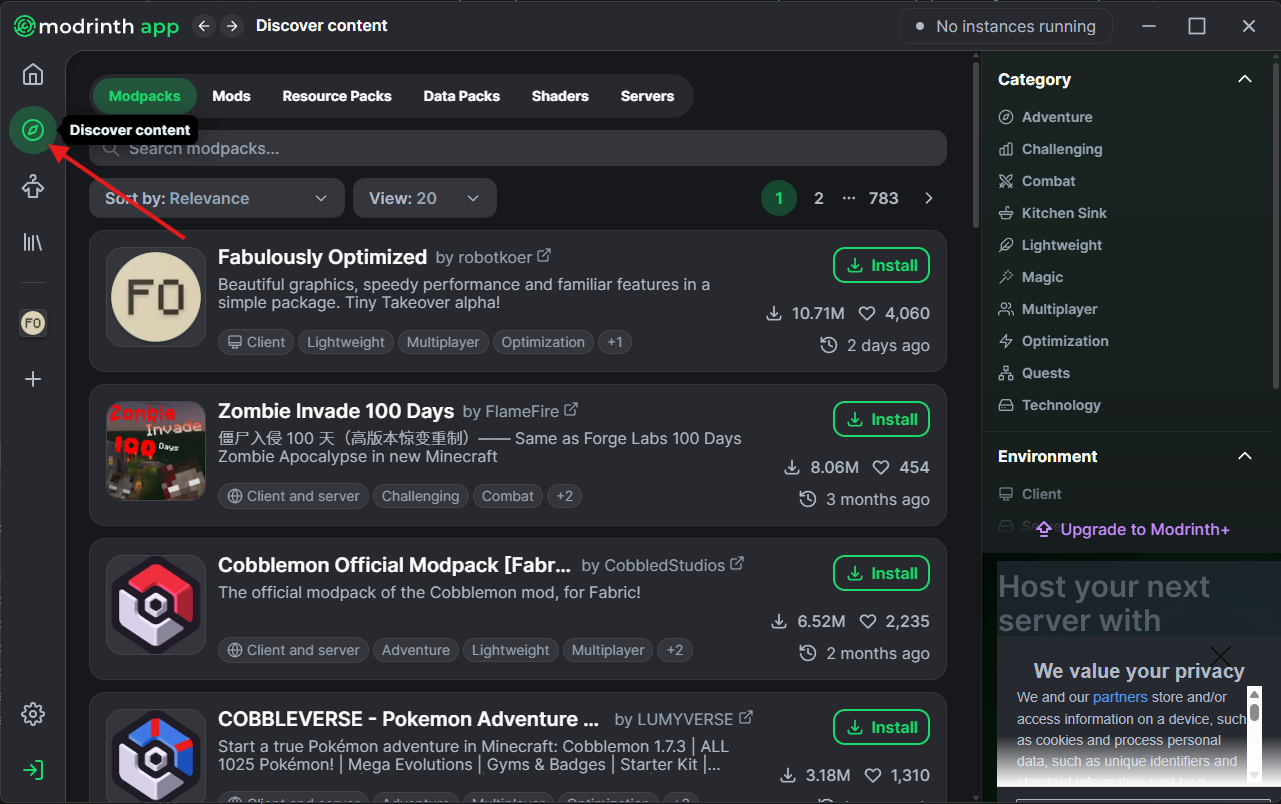
Step 2: Go to the Discover content tab

Now that you're on the app, you'll want to head to the discover page where you discover new mods, plugins, shaders and more!
Select Modpacks

Step 3: Select Modpacks

On the navigation bar at the top, you'll see options for Modpacks, Mods, Resource Packs etc. For this you'll want to make sure you've selected Modpack
Search for and Install Modpack

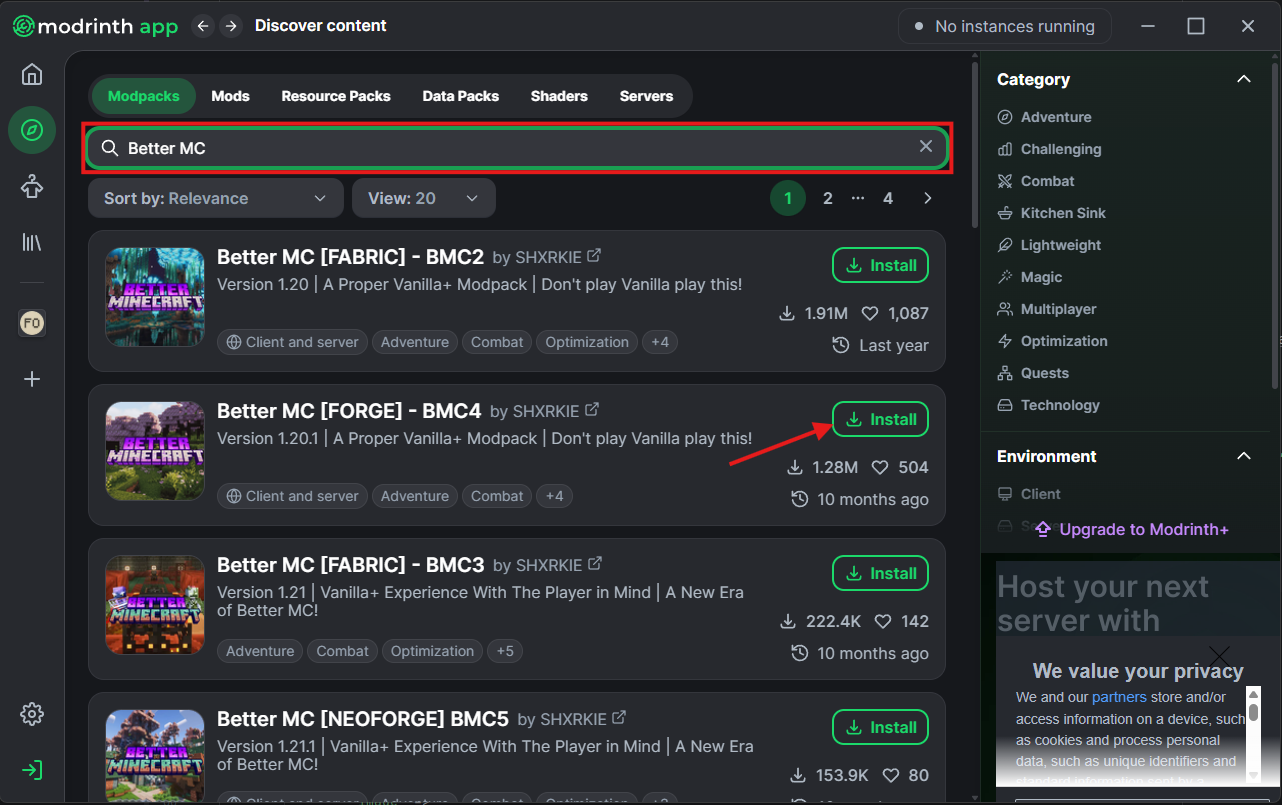
Step 4: Search for and Install Modpack

Now you'll want to find the modpack you want to install onto your server. Just use the search bar at the top of the page, and once your modpack of choice comes up, just press install! For this example I've used Better MC
Setup Your Server

Step 5: Setup Your Server

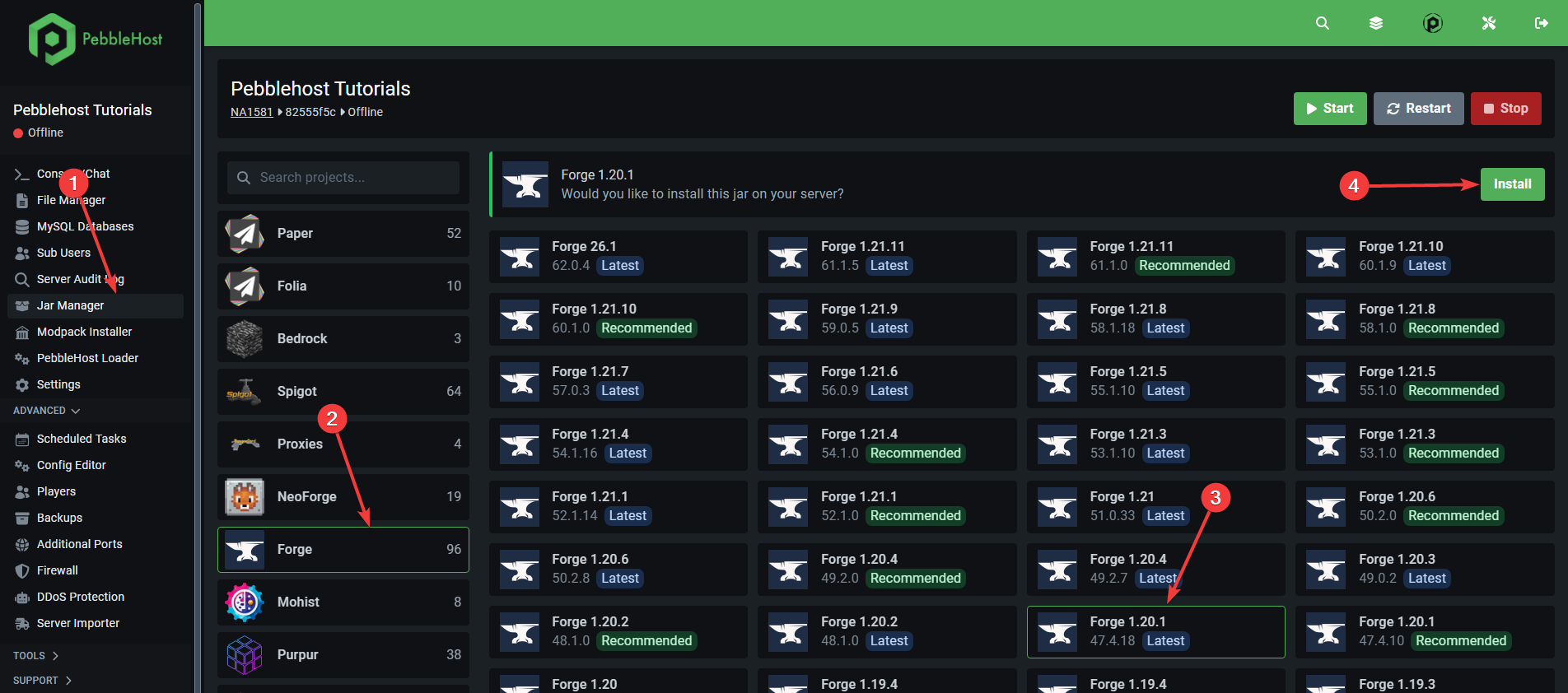
While that downloads, you'll want to head to your Game Panel, from there just head to the Jar Manager, and install the required server Jar for you modpack. Since we're using Better MC [FORGE] for this example, it requires Forge 1.20.1
Access Modpack Files

Step 6: Access Modpack Files

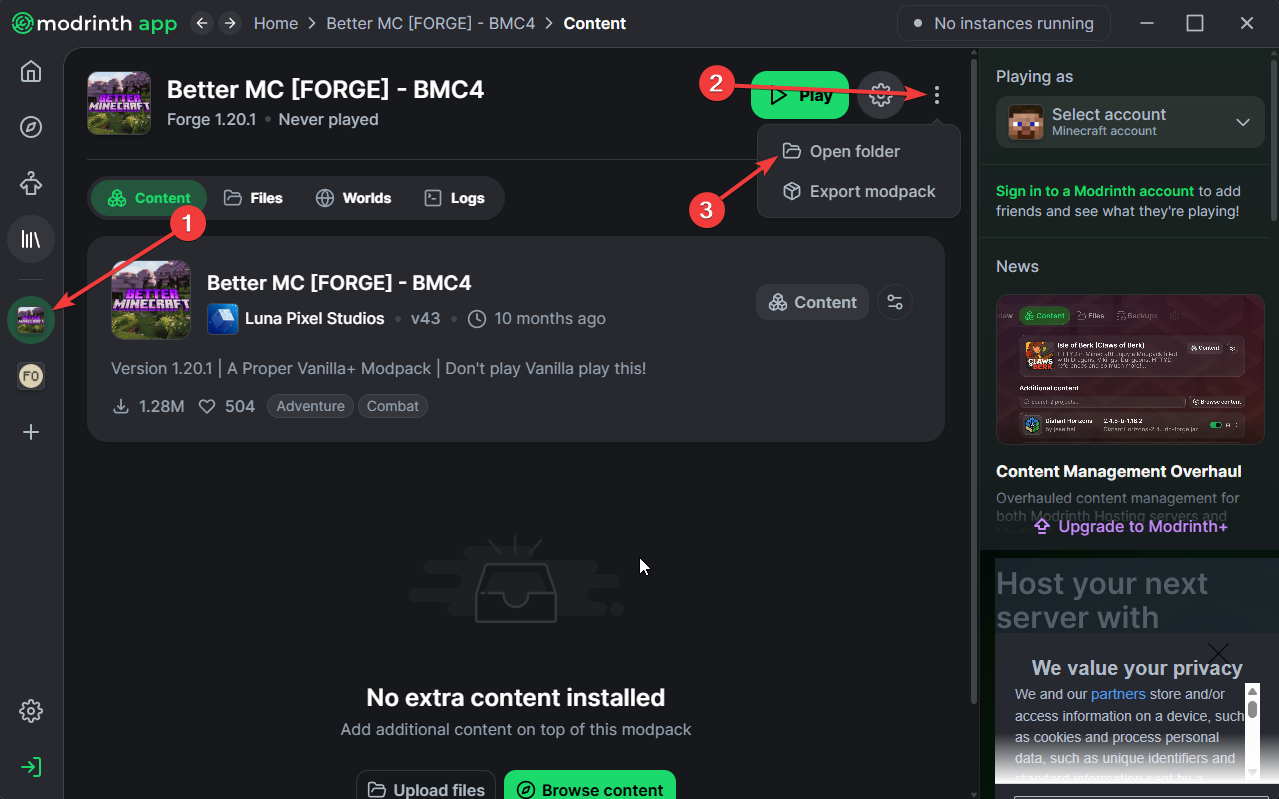
Now that the modpack has downloaded, head to the modpack using the bar on the left of your App. From there press the three dots in the top right, and then press Open Folder
Move the Mods

Step 7: Move the Mods

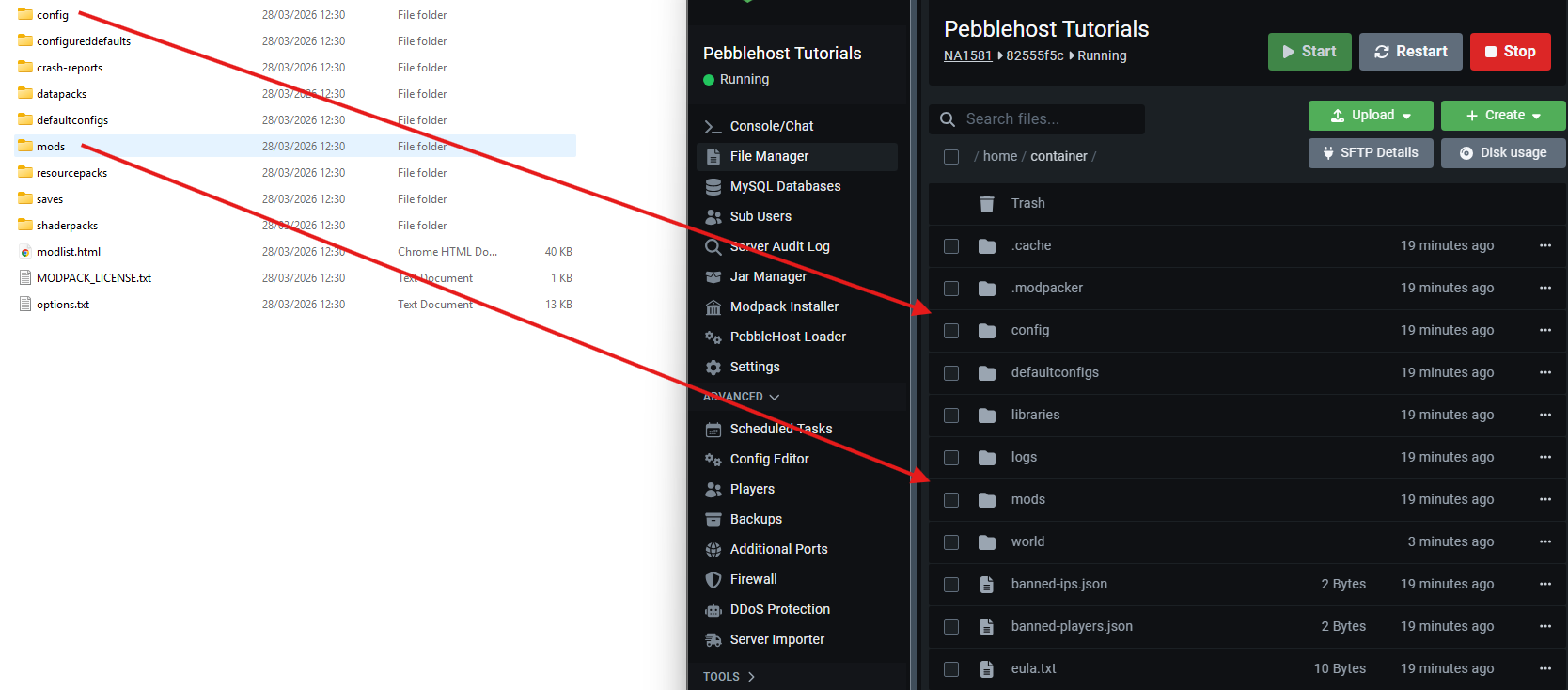
For this next step you'll need the folder you just opened, and the file manager of your server. You'll need to move all the mods Jars from within the modpack's mods folder to the mods folder on your server. You'll then do the same with any configs within the config folder!
Delete The World

Step 8: Delete The World

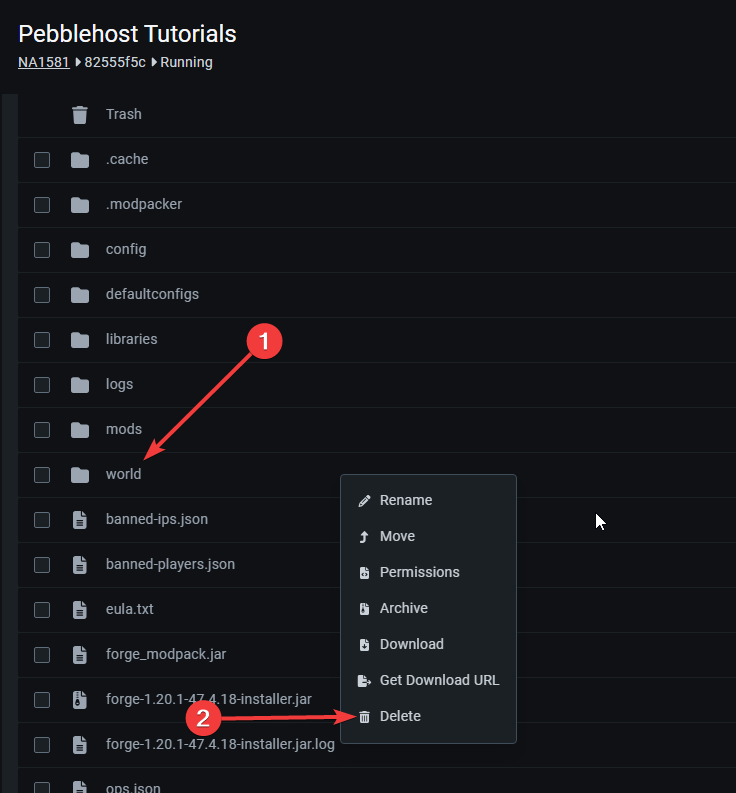
The world that was generated when you installed the server Jar won't have loaded with any of your mods, so you'll want to delete it! Just right click on the world, and press delete.
Start the Server

Step 9: Start the Server

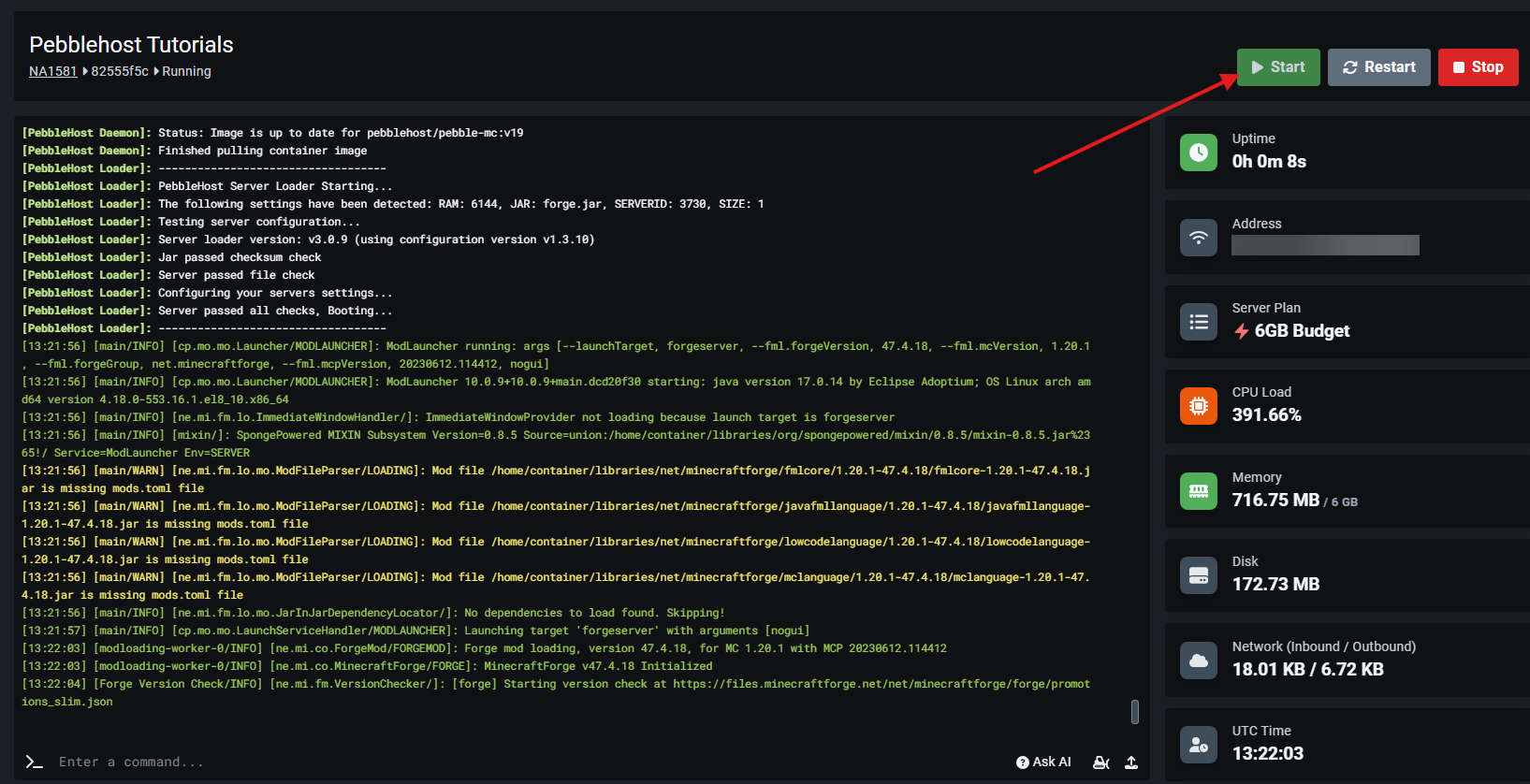
Finally, you'll want to head to the console page of your Game Panel, and press the start button. This will start the server, creating a new world, and loading all your mods!
Client-Side

How to install a Modrinth Modpack on to the client?

Install your Modrinth modpack on the client quickly and easily with this step-by-step guide. We’ll walk you through importing the modpack into your launcher and getting everything set up so you can jump into the game without any hassle.

Open up the Modrinth app

Step 1: Open up the Modrinth app

First, you'll want to open up the modrinth app. We have a guide on how to install it here

If you already have a Modpack downloaded, or have made a custom one, just skip straight to step 5!
Go to the Discover content tab

Step 2: Go to the Discover content tab

Now that you're on the app, you'll want to head to the discover page where you discover new mods, plugins, shaders and more!
Select Modpacks

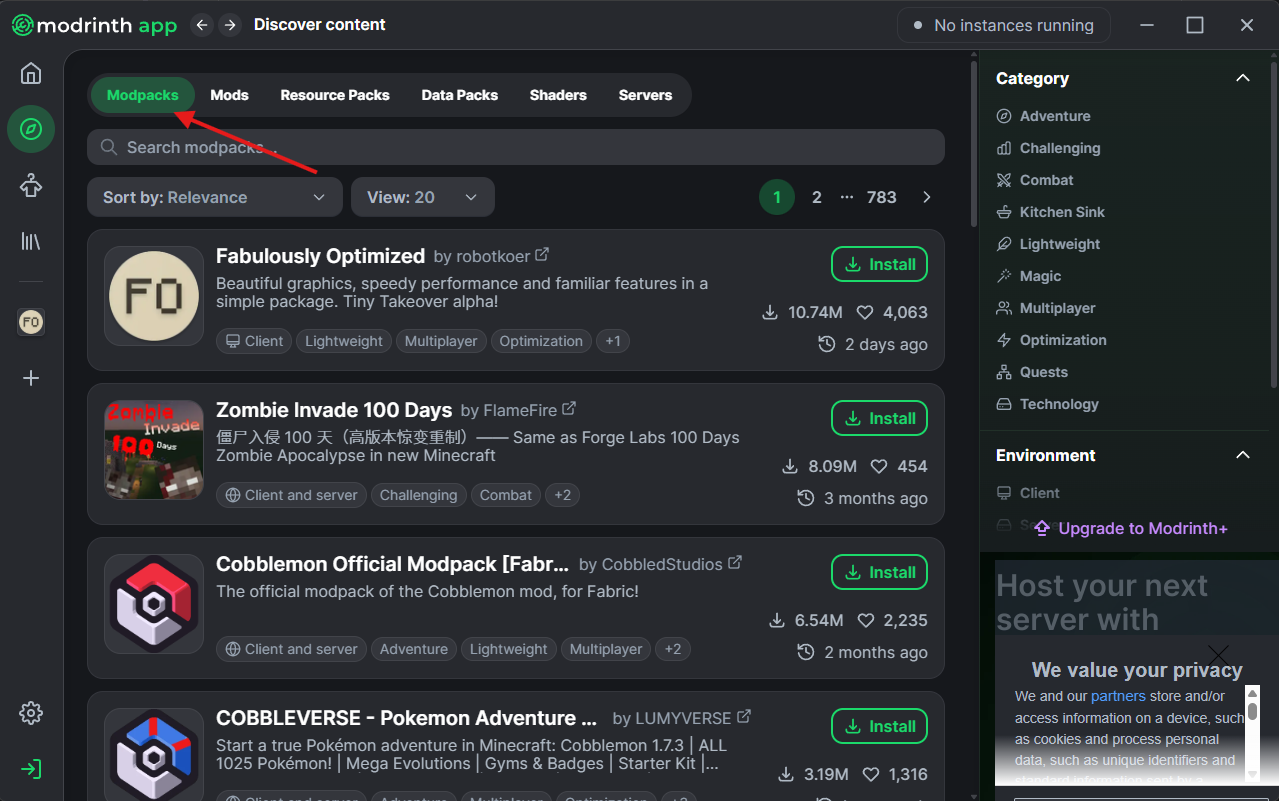
Step 3: Select Modpacks

On the navigation bar at the top, you'll see options for Modpacks, Mods, Resource Packs etc. For this you'll want to make sure you've selected Modpack
Search for and Install Modpack

Step 4: Search for and Install Modpack

Now you'll want to find the modpack you want to install onto your server. Just use the search bar at the top of the page, and once your modpack of choice comes up, just press install! For this example I've used Better MC
Press Play!

Step 5: Press Play!

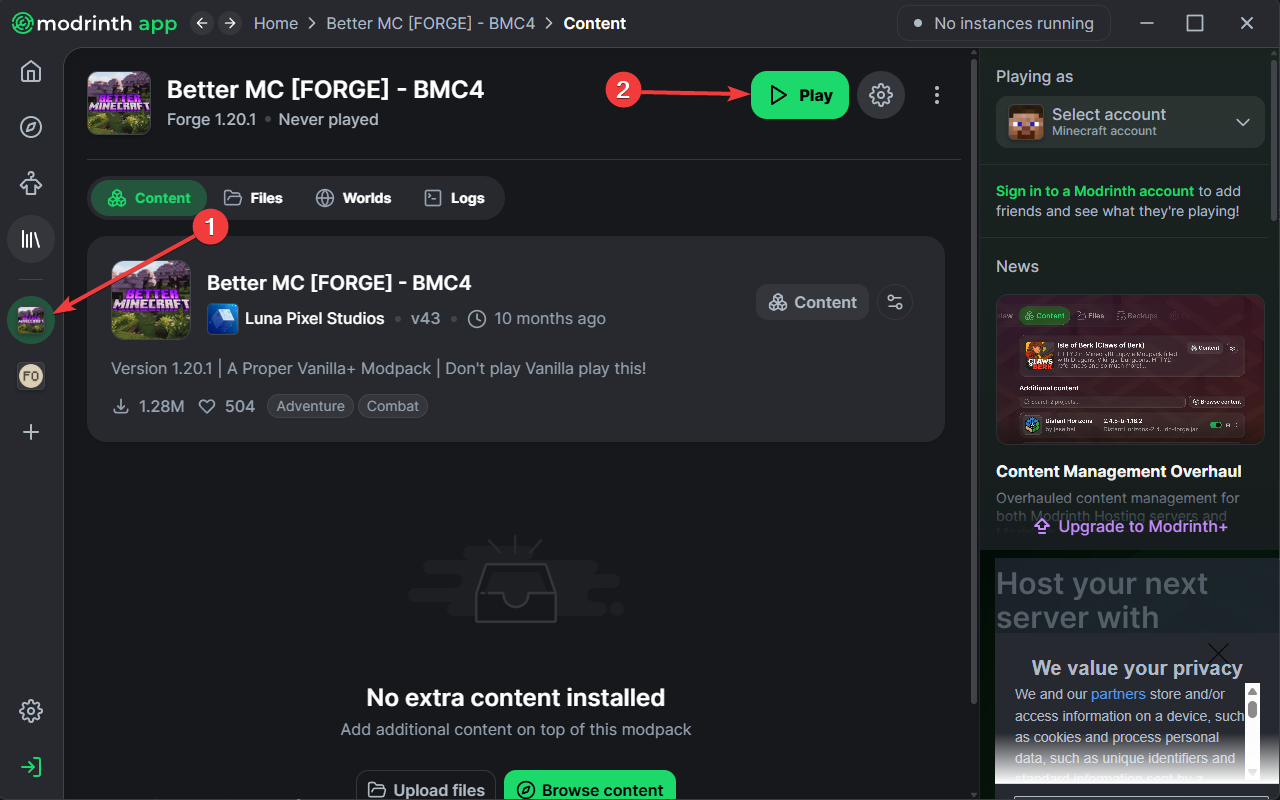
Once the modpack is downloaded, all you need to do is go to it using the sidebar on the left side of the app, and them press play!
.MRPACK's

How to install an modpack in the .mrpack format?

Sometimes modrinth modpacks are exported and sent to you as an .mrpack file. This guide show you how to install it to the Modrinth App if you're using a .mrpack file.

Open up the Modrinth app

Step 1: Open up the Modrinth app

First, you'll want to open up the modrinth app. We have a guide on how to install it here
Press the Plus

Step 2: Press the Plus

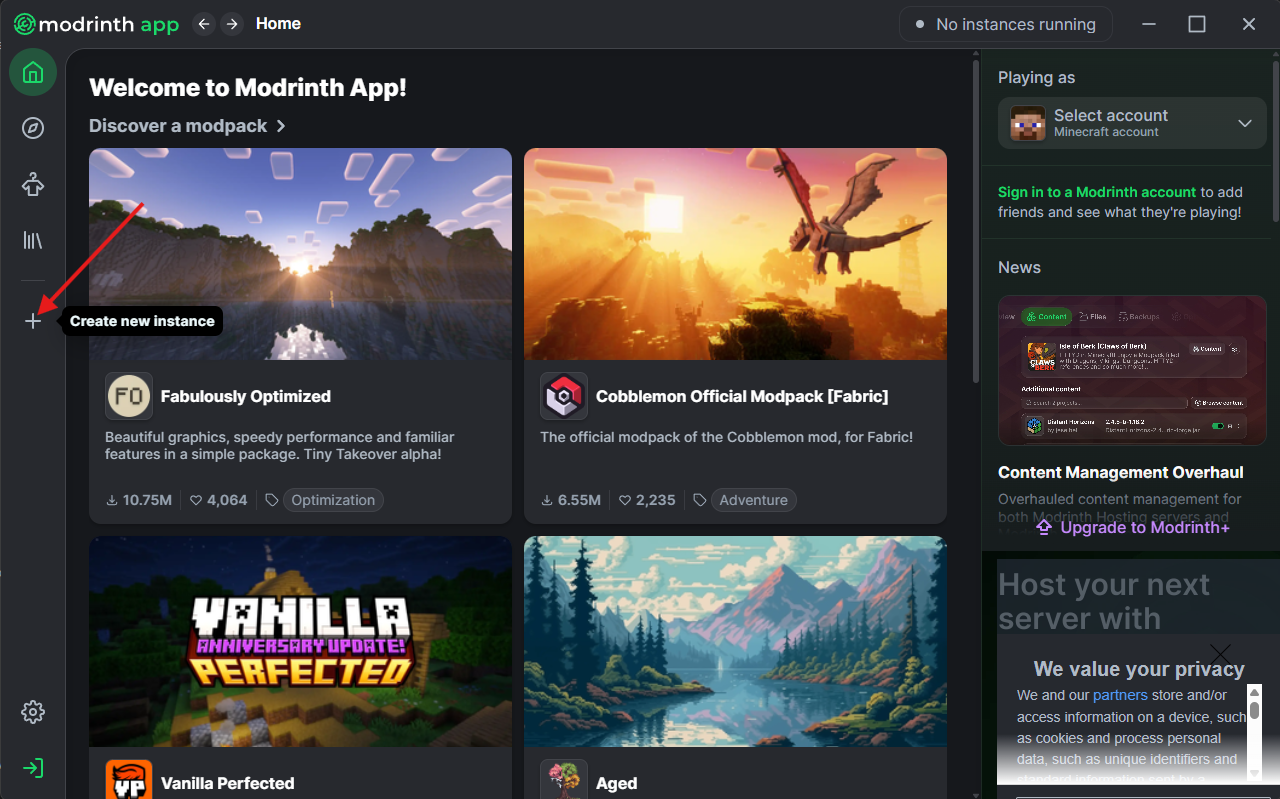
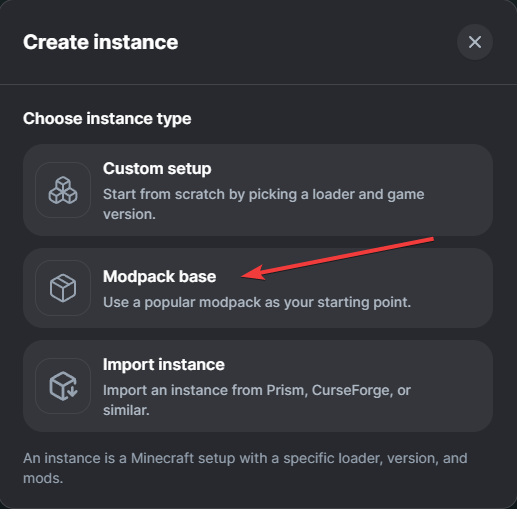
Next you'll want to press the plus button on the left sidebar. This will bring up the create instance popup.
Select Modpack Base

Step 3: Select Modpack Base

Now you'll want to select the Modpack base as the option to create the instance
Import Modpack

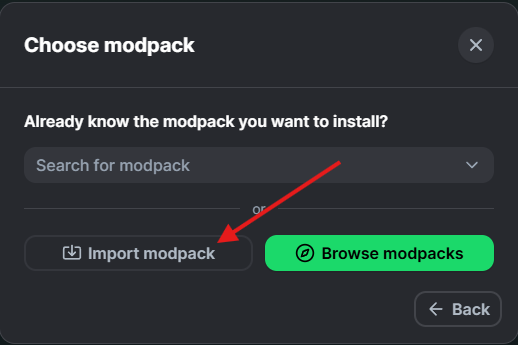
Step 4: Import Modpack

Next, you'll want to press the Import modpack button as this will allow you to install the modpack from your own PC
Select Modpack

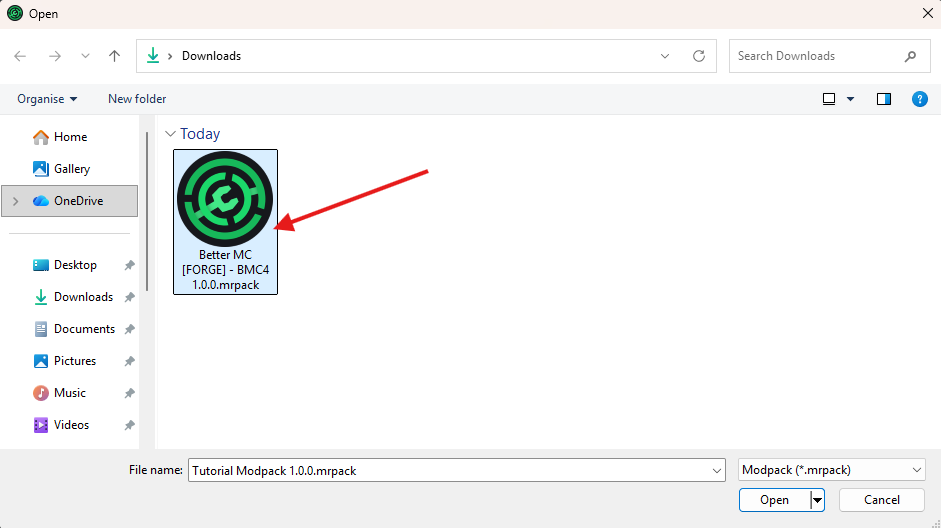
Step 5: Select Modpack

Navigate in your PC's file system to where you're storing your .mrpack file. If you've just downloaded it, it's likely to be in the downloads folder. Once you find it, select it and press Open.
It's now installed!

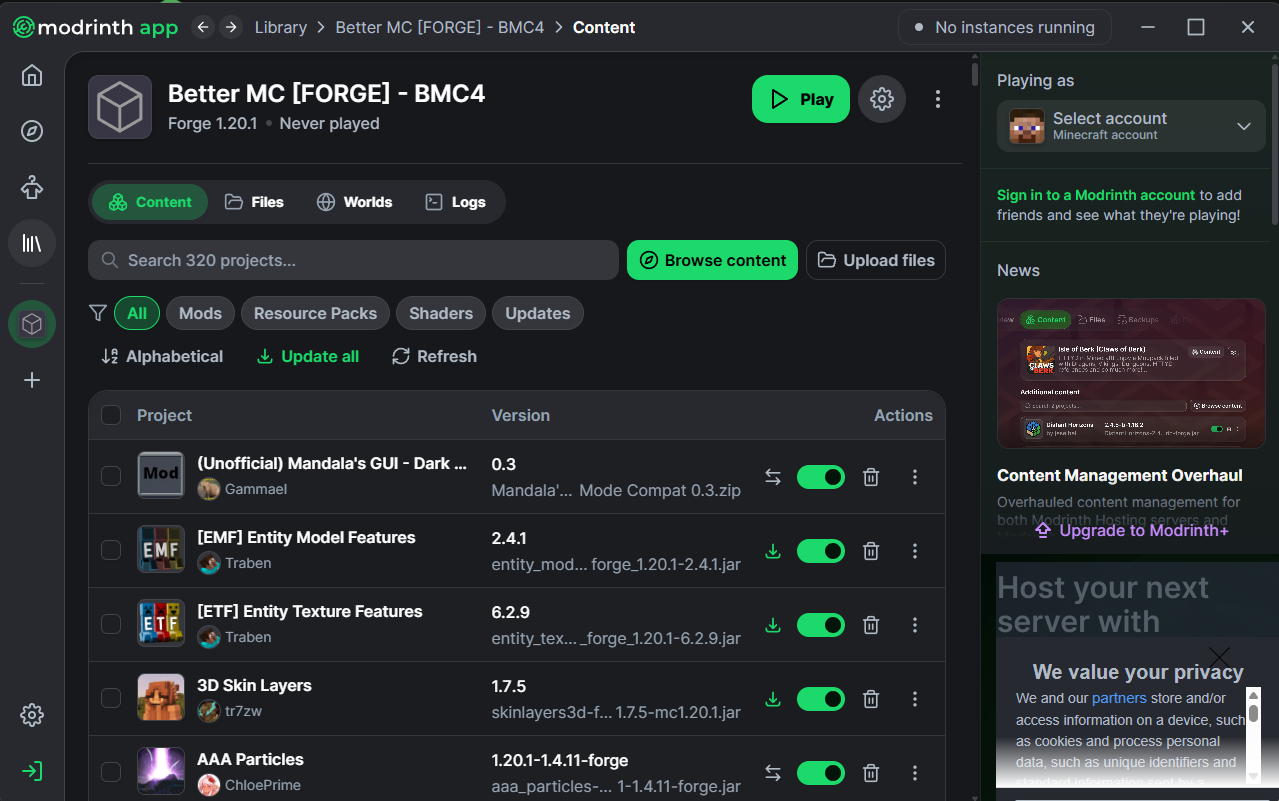
Step 6: It's now installed!

Your modpack should now start installing, and you should be good to go! If you want to start it up on your client, just press play and if you want to add it to your server, just follow our guide here
Index

All Your Modrinth Questions Answered

Each of these cards contains a link to a page that answers a commonly asked question about using Modrinth!

Ready to install your Modrinth Modpack?

PebbleHost offers premium game server hosting for every type of Modrinth modpack! Enterprise hardware with AMD Ryzen™ 9 9900X CPUs, 99.99% uptime, and 72-Hour money-back guarantee.

View Minecraft Server Hosting