Why use a custom modpack?

Using a custom modpack instead of a premade one mainly comes down to control vs convenience. You decide exactly what goes in—whether that’s tech mods, magic, performance tweaks, or just quality-of-life improvements. Custom packs can be leaner and faster because you only include what you need. Want hardcore survival? Chill building? Vanilla+? You can tailor everything instead of adapting to someone else’s vision. If you’re running a private server, a custom pack lets your group agree on exactly what you all want—no compromises.

How to create a custom modpack on Modrinth

In this guide, you’ll learn how to create a simple custom modpack using Modrinth by adding and managing mods in one place. No advanced setup or optimization required—just a clean, easy way to put together your own modded Minecraft experience.

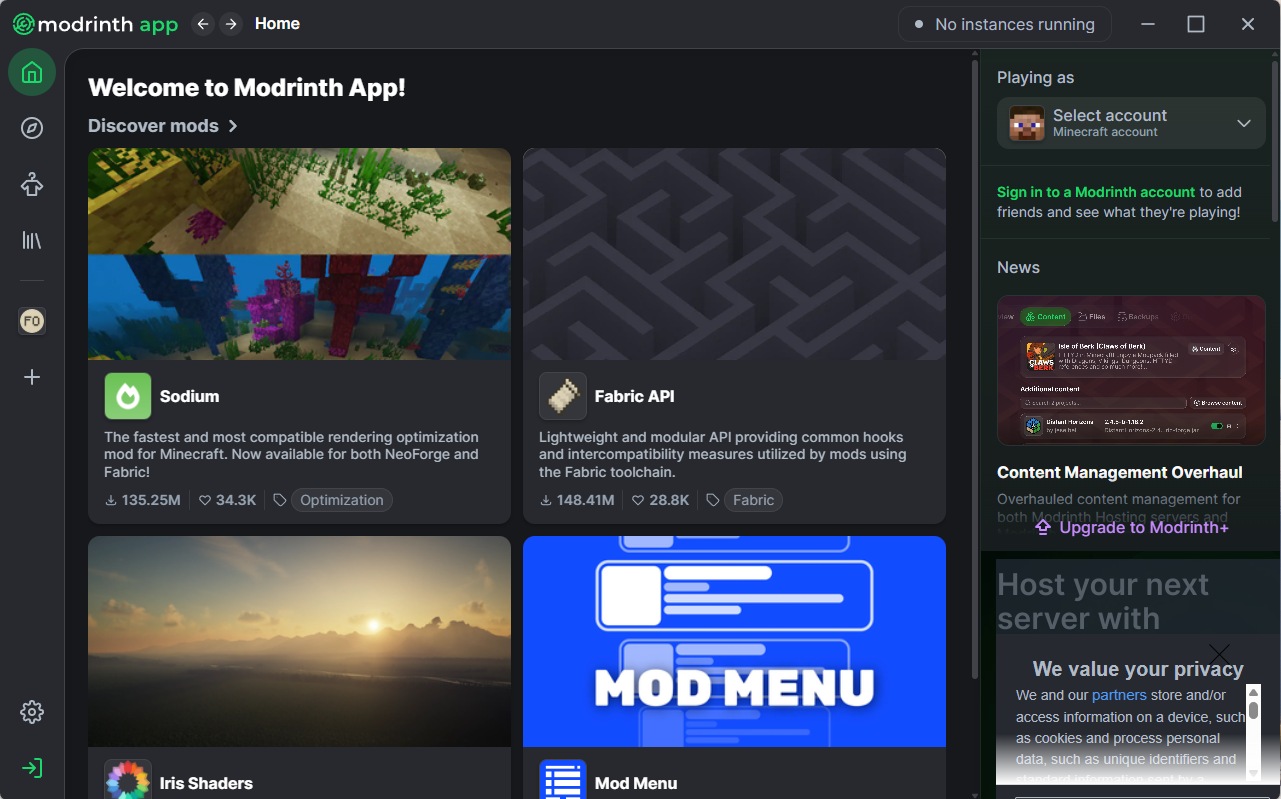
Open up the Modrinth app

Step 1: Open up the Modrinth app

First, you'll want to open up the modrinth app. We have a guide on how to install it here
Press the Plus

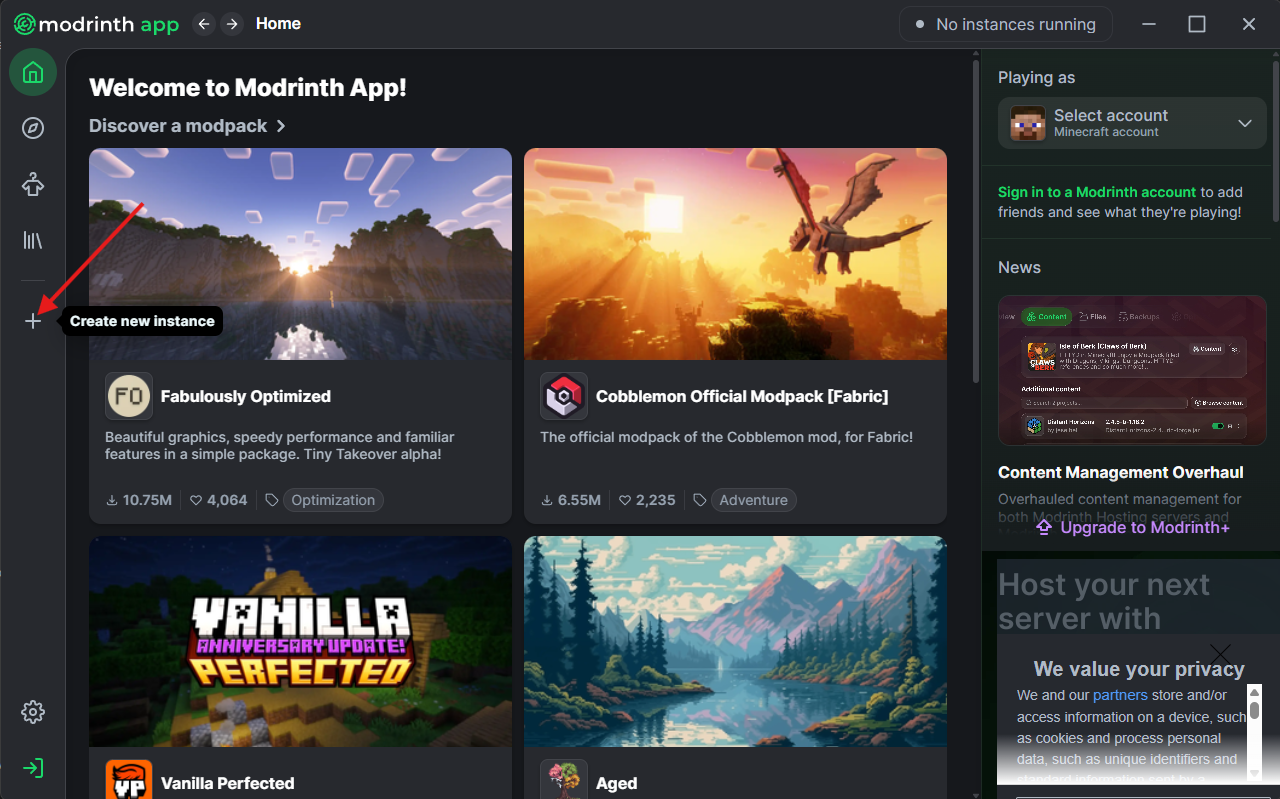
Step 2: Press the Plus

Next you'll want to press the plus button on the left sidebar. This will bring up the create instance popup.
Select Base

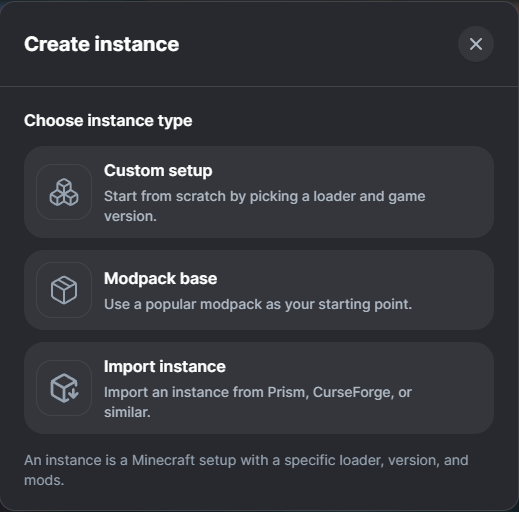
Step 3: Select Base

Here you have a choice to create a completely custom modpack, use an already existing modpack as the base for a brand new modpack, or import another instance from another provider like CurseForge! In this guide, we'll be selecting Custom Setup
Create the Instance

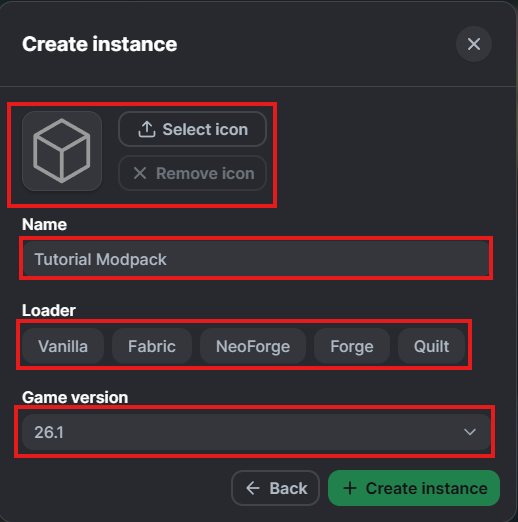
Step 4: Create the Instance

For this step, you'll need to set a name for the modpack, the Loader it uses, whether that be Forge, Fabric or NeoForge, and then you'll need to pick the Game Version. Once you've selected all that, all you need to do is press create instance!
Go to the Modpack

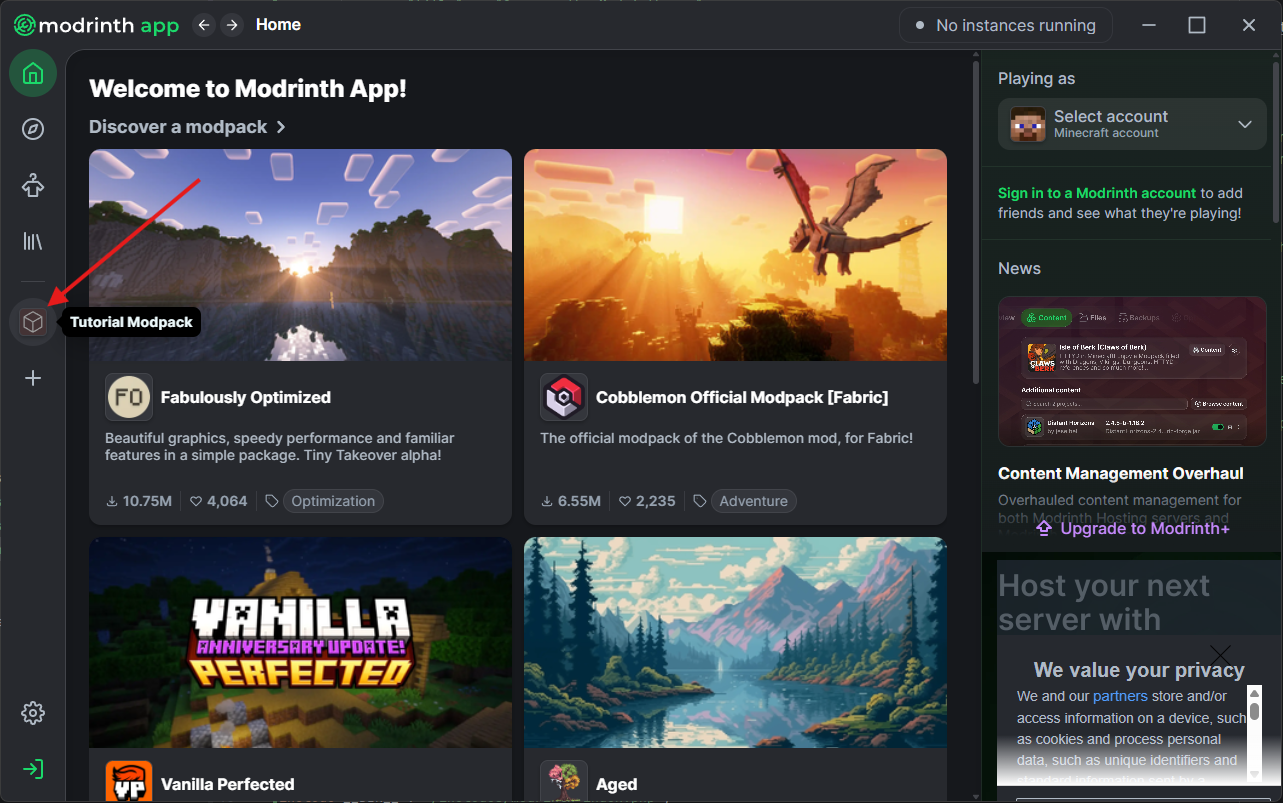
Step 5: Go to the Modpack

You should now see an icon on your left side bar, that will be your new modpack. If you click on that icon, it should take you to the page of your new modpack.
Browse Content

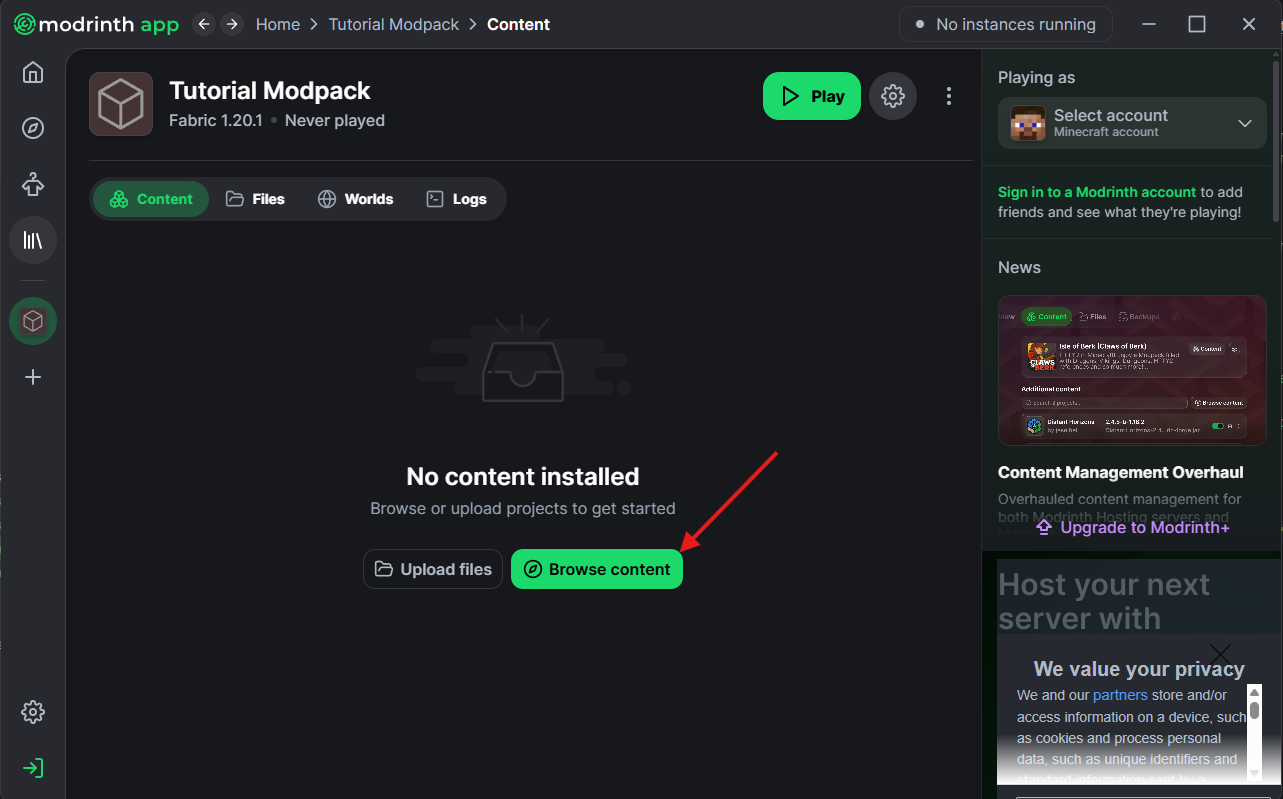
Step 6: Browse Content

Now that you're on your modpack's page, you'll notice it's completely empty. You'll want to press Browse content to start adding mods.
Add Mods

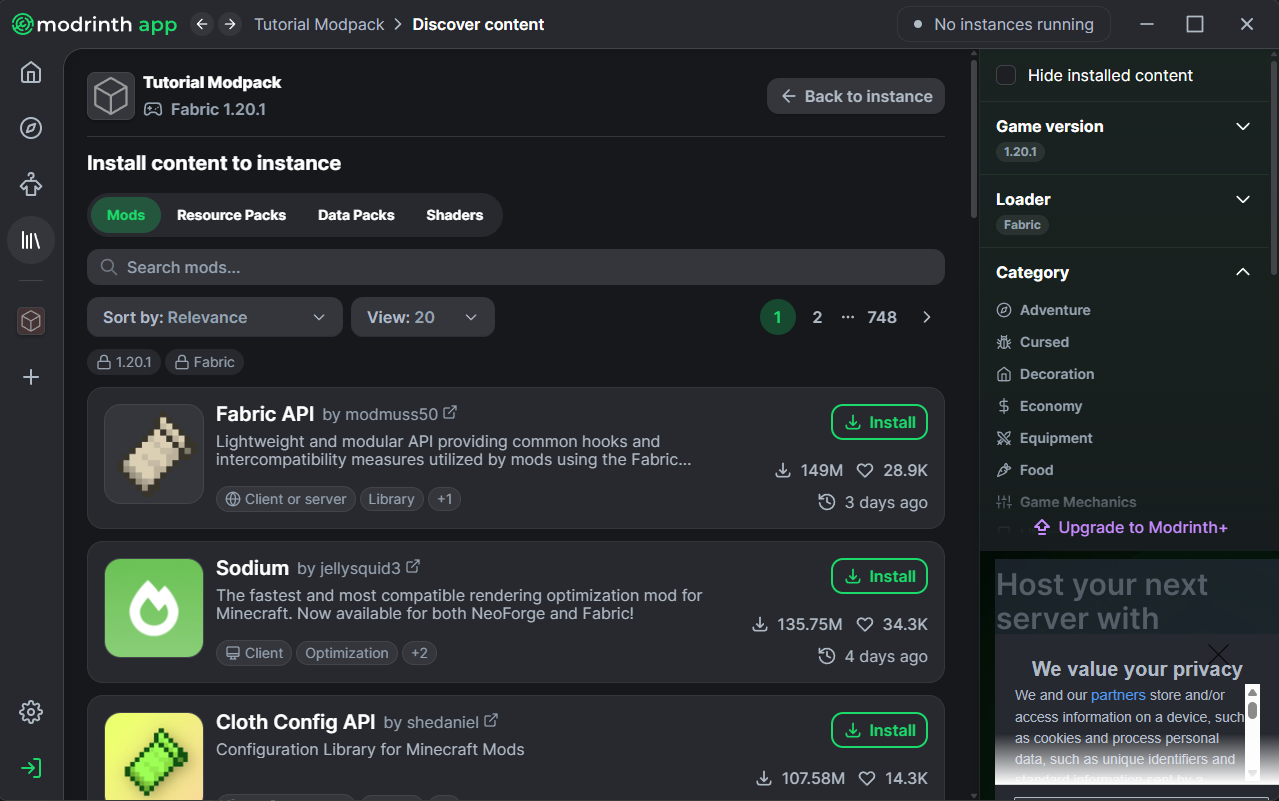
Step 7: Add Mods

This page contains a lot of useful features. By using the navigation bar at the top, you can look between, mods, resource packs, data packs and shaders all for your modpack. It also provides a very useful search bar for you to look for the mods you want in your modpack. All you have to do once you've found something you want, is press the install button, and it'll add it to your modpack!
Start Modpack

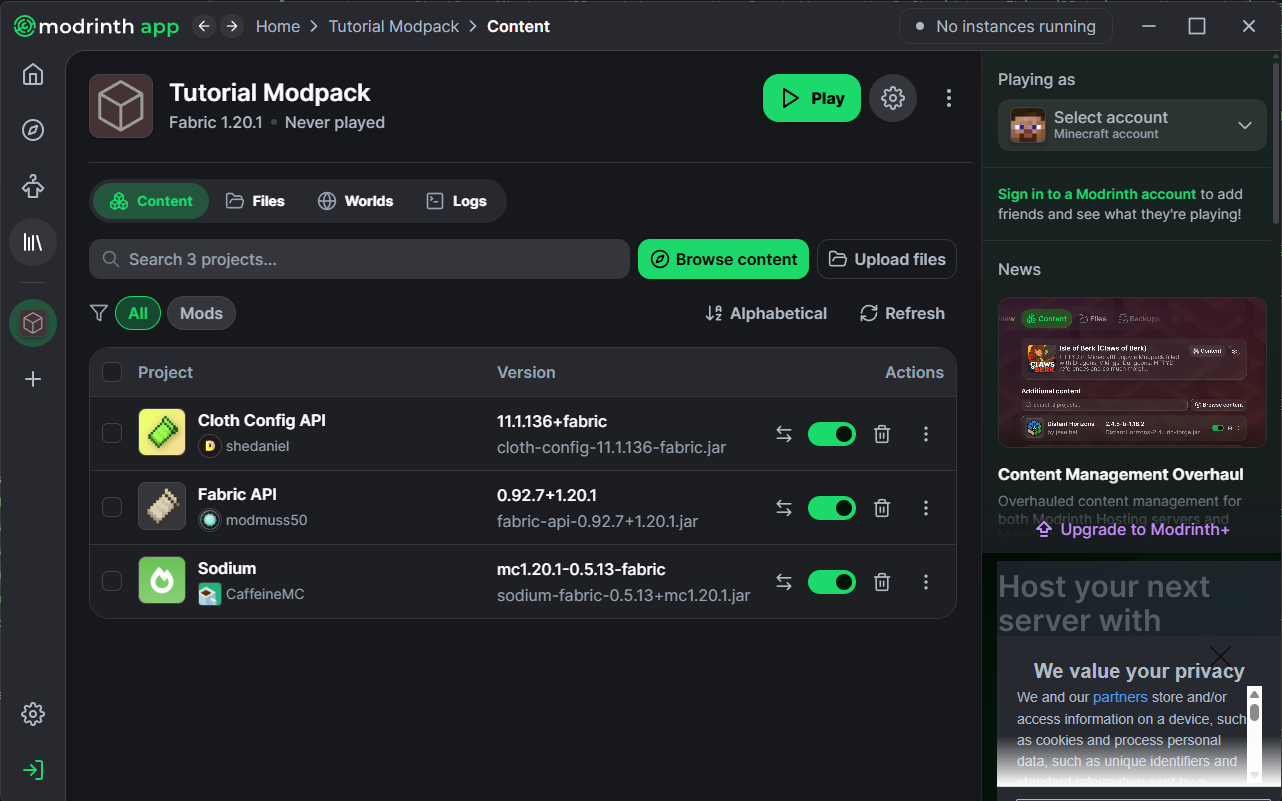
Step 8: Start Modpack

All you have to do now, is make sure all the mods you want are turned on, and press the play button! That will will download all the mods, and start up your game so you can play Minecraft with your modpack!

If you want to share this modpack to others so they can play along with you, just follow this guide here
Index

All Your Modrinth Questions Answered

Each of these cards contains a link to a page that answers a commonly asked question about using Modrinth!

Ready to try out your custom Modrinth Modpack?

PebbleHost offers premium game server hosting for every type of Modrinth resource including mods, plugins and datapacks! Enterprise hardware with AMD Ryzen™ 9 9900X CPUs, 99.99% uptime, and 72-Hour money-back guarantee.

View Minecraft Server Hosting